AI assistant for your dashboard
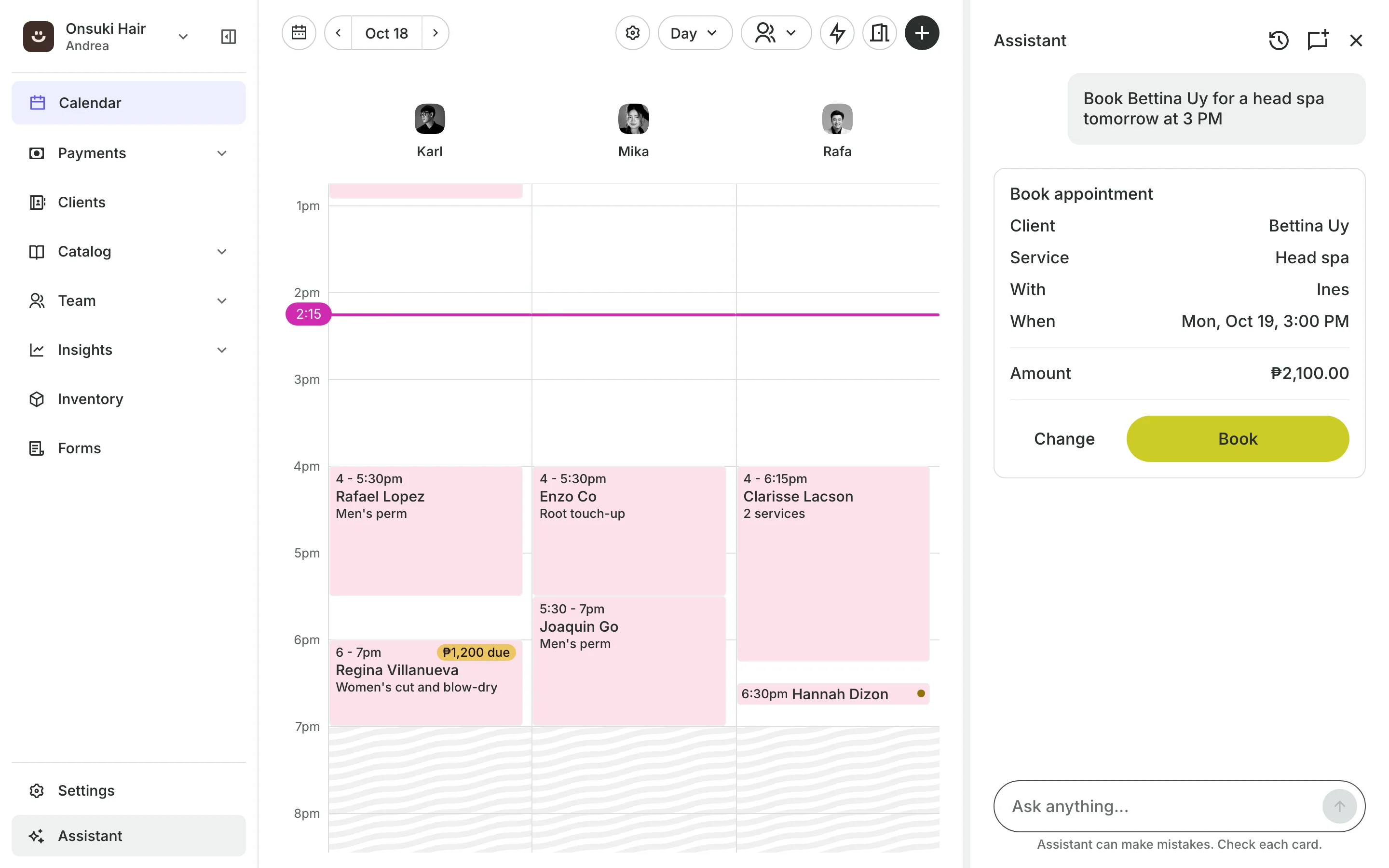
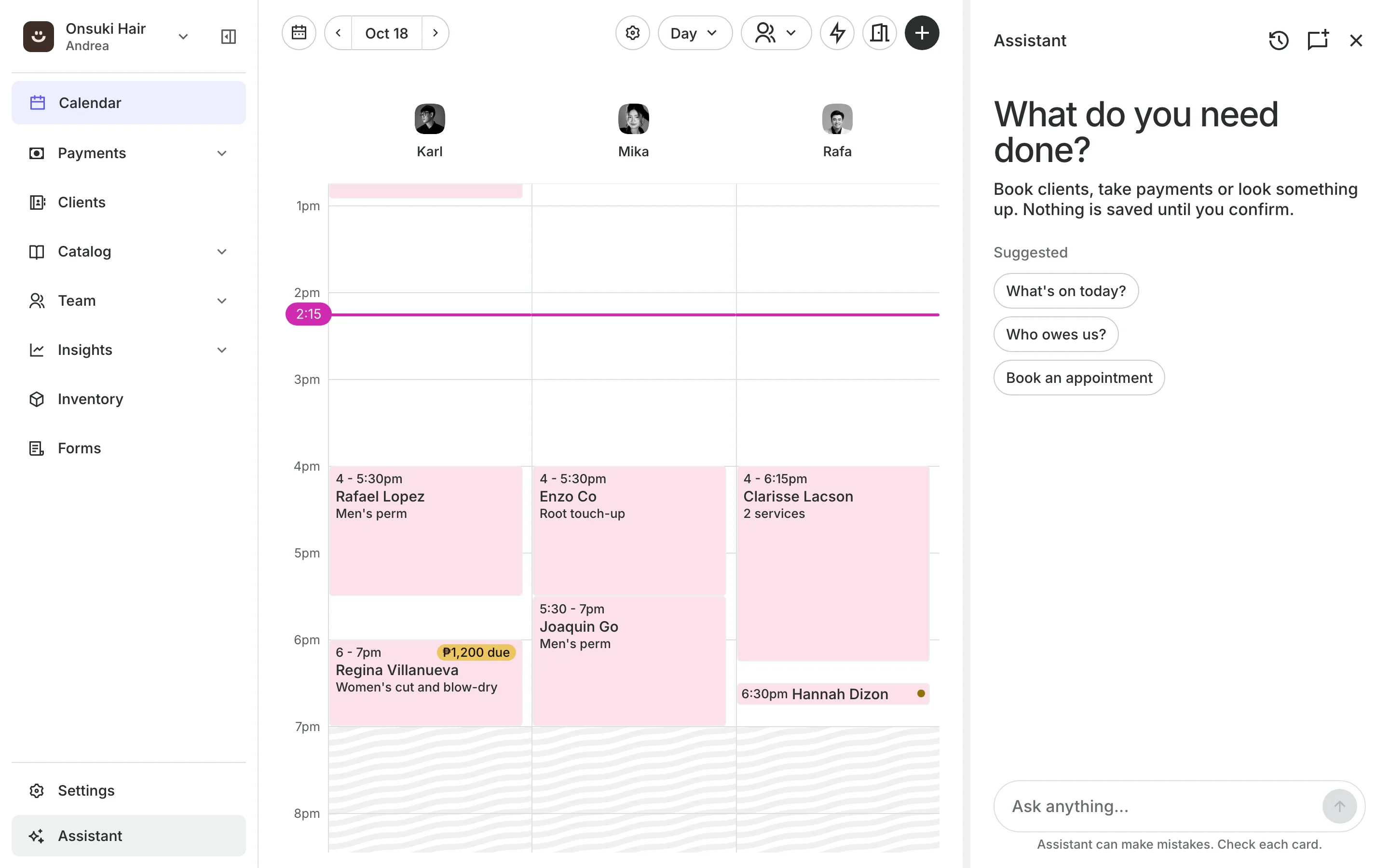
Your team types what they need in plain English or Tagalog. The assistant books, moves, and cancels, finds who owes, and answers questions about the day. Every change shows on a card first.
Free 7-day trial. No credit card required.
Clients pay online or in person













Ask from any screen
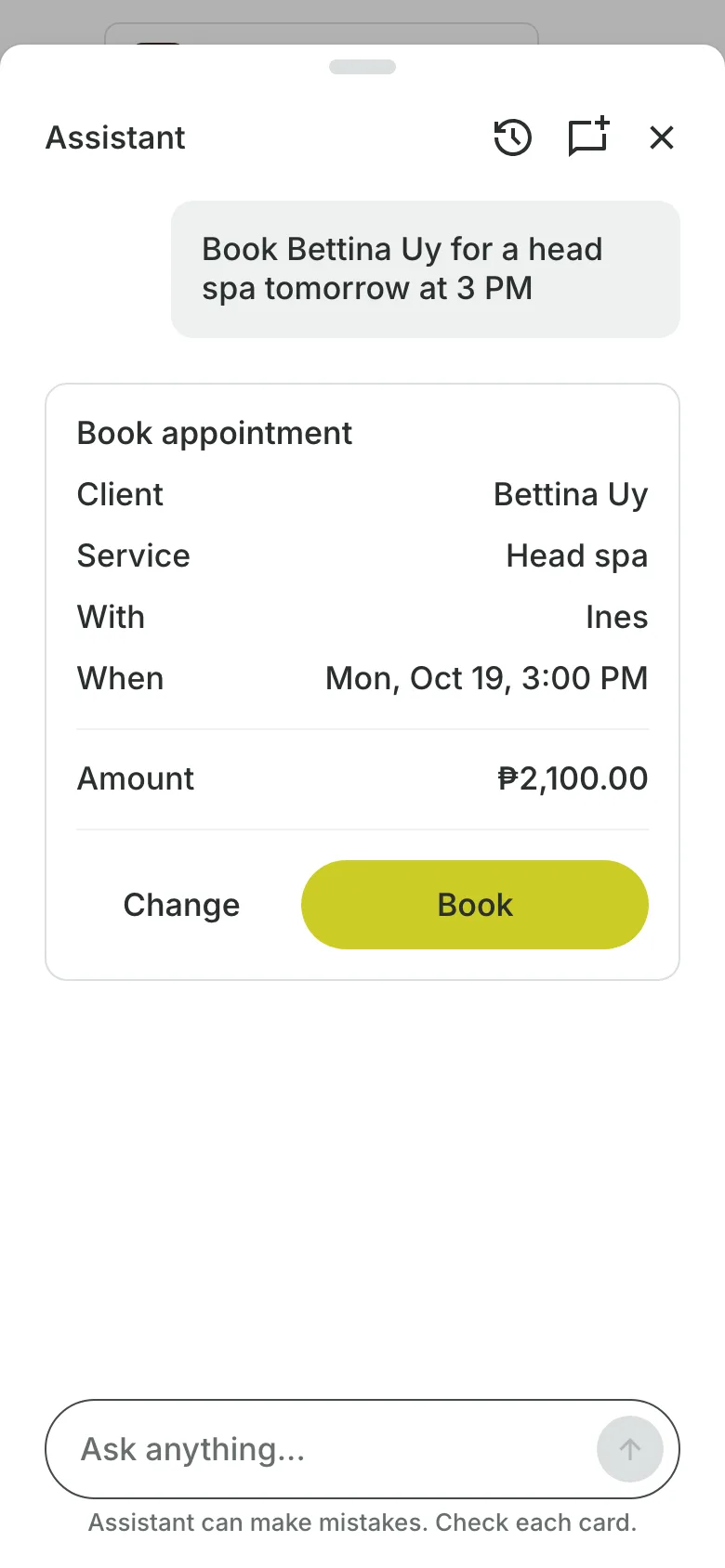
Assistant sits at the bottom of the menu on a computer, and behind the sparkle on a phone. It works with your own clients, calendar, and sales.
Answers
Answers about the day and the numbers
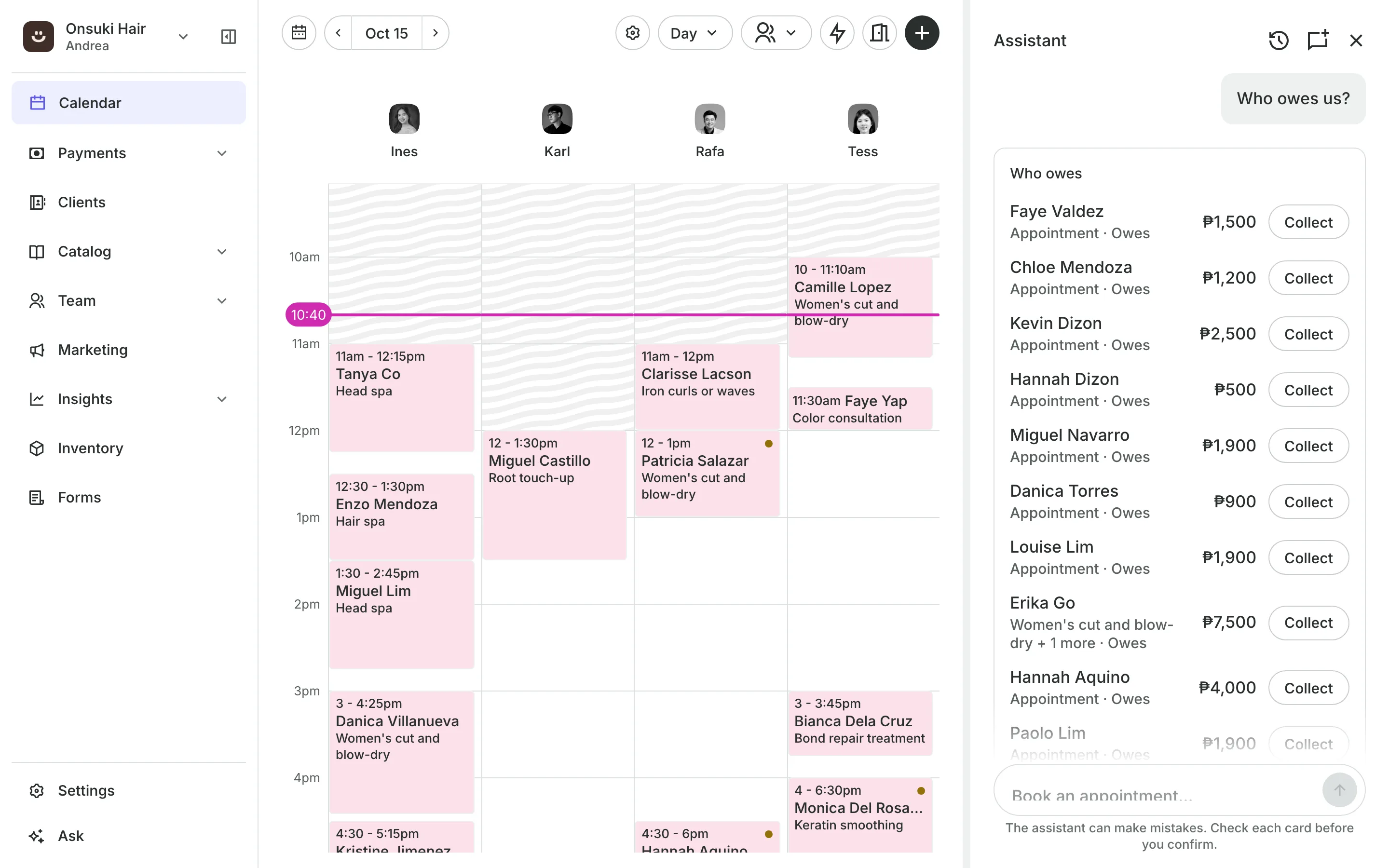
Ask who owes you and see each client, what for, and the amount, with Collect beside it.
See what is booked today, and mark arrivals, no-shows, and check-ins.
Find the next opening for a service.
See sales for a day or a range, and your top clients.
Changes
A confirmation card for every change
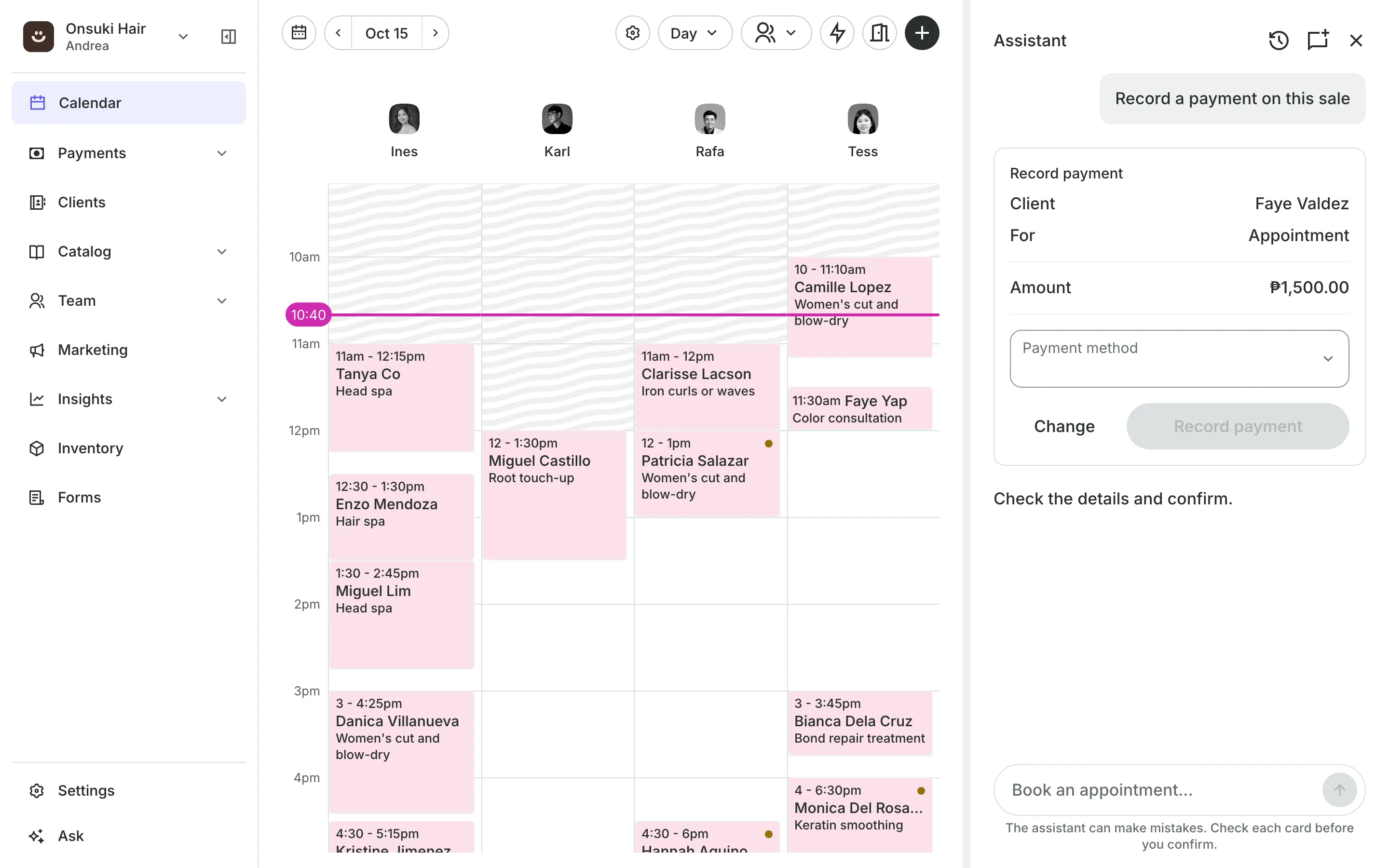
A booking, a payment, a refund, or a new price shows on a card with the exact figures. Nothing is saved until someone presses the card's button. Change fixes a detail first.
Do what the screens do, with the same rules.
Book, move, and cancel appointments.
Record payments and copy pay links.
Permissions
Only what each person may do
The assistant offers each person only what their role and permissions allow. A Provider sees and books only their own clients. A business with Charting on has no assistant, so charts are never sent to it.
Suggested questions help you get started.
Earlier chats are kept in History.
Anything else gets a link to the right screen.
Ask your first question
Open Assistant, type what you need, and confirm the card.
1
Open Assistant
From the menu on a computer, or the sparkle at the top on a phone.
2
Type what you need
"Who owes us?" or "May bakante ba bukas ng 3 PM?"
3
Confirm the card
Check the details, then press the card's button.
Booking for any business
Tell us what you run and Onsuki sets itself up for it: your words, your way of booking, the screens you need.
















Frequently asked questions
Every plan includes a monthly allowance of AI use, shared with the Concierge on your booking page. Settings, Subscription shows how much of it is used, as a percentage.
For more, add AI Plus (20 times the included use) or AI Max (80 times) to your plan.
Every change waits on a card. You see the client, the time, and the amount, and it is saved when you press the card's button.
Book, move, and cancel appointments; add clients to classes and check them in; record payments and refunds; sell packages and memberships; block time; close a day; change a service's price; check stock; and check stays in and out.
What your team types, and the client names, services, bookings, dates, and balances needed to answer. Phone numbers, emails, and notes are not sent unless someone types them.
The assistant is off at any business with Charting on, and client charts are never sent to it.
7 days, with every feature of your plan. You choose a plan when the trial ends.
No. You sign up with your email or Google account, tell us what you run, and start setting up.
Each plan is one monthly price with unlimited bookings. See the pricing page for the plans and what each includes.
Set up your booking page today.
Free 7-day trial. No credit card required.