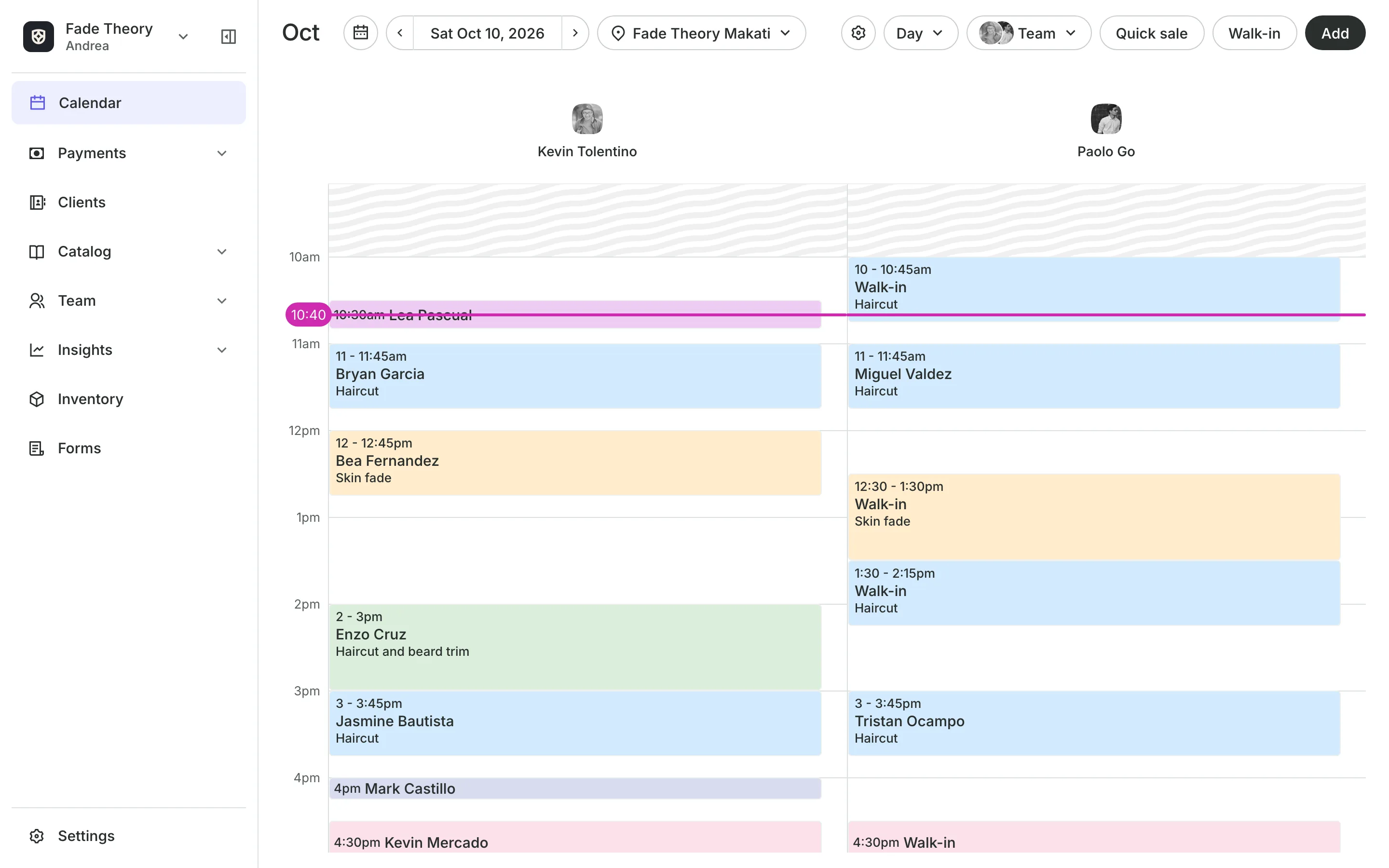
Book the right person at the right time
Clients book a service with the person they want, or anyone free. Onsuki only offers times when the person and the room are both free.
Free 7-day trial. No credit card required.
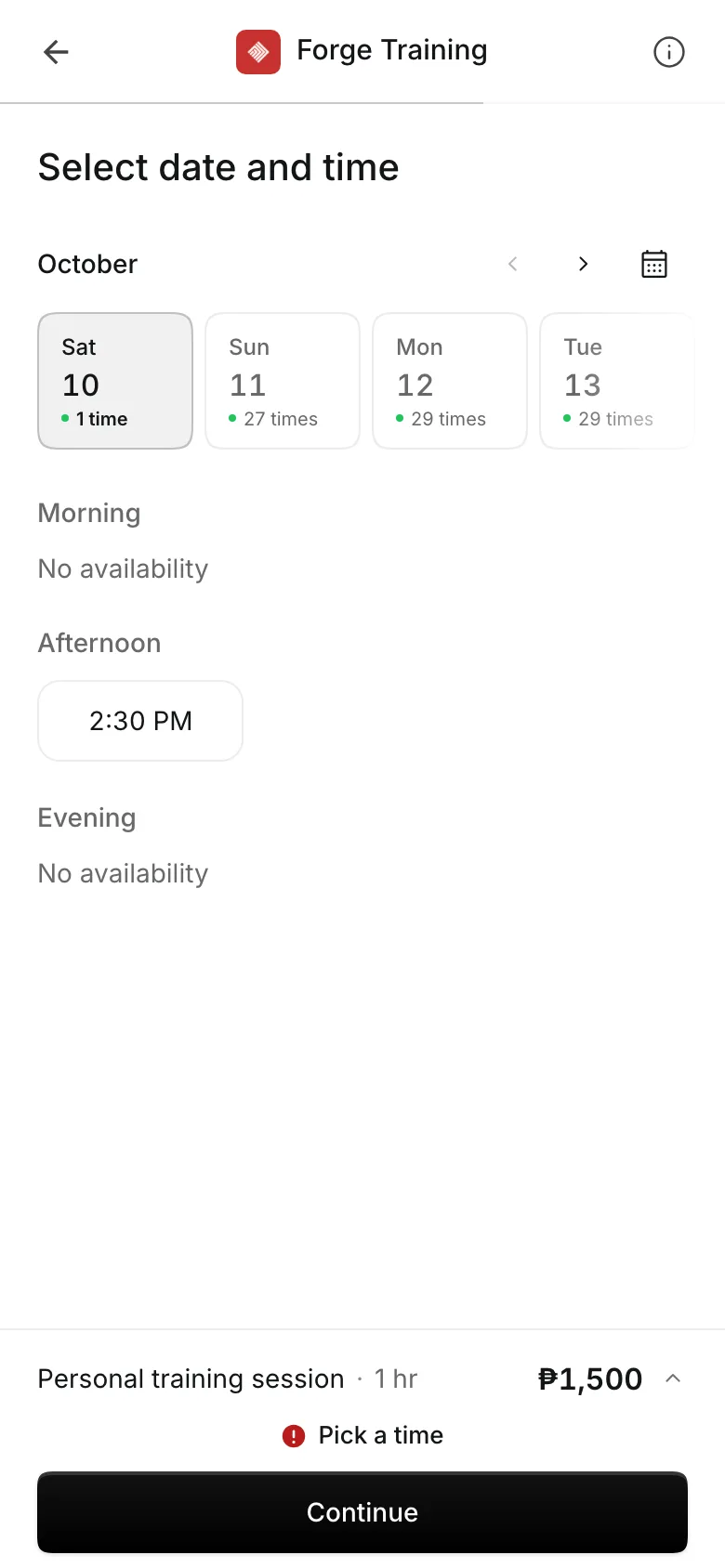
Clients pay online or in person













Set up each service once
Each service has a price, a length, and the people who offer it. Your booking site and your calendar offer the same services.
Staff and prices
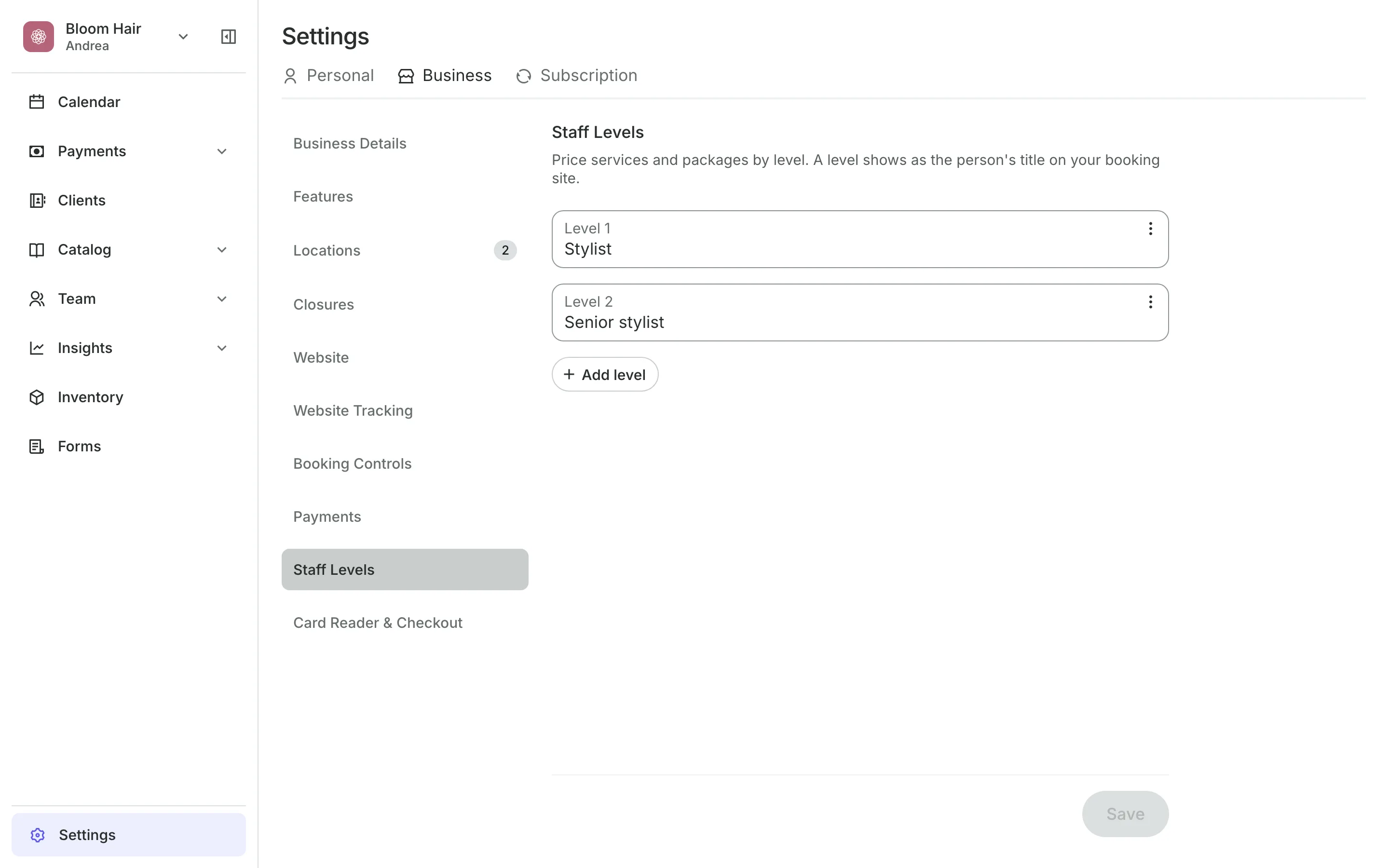
Charge more for senior staff
Staff levels like Junior and Senior give one service a price per level.
Who does what is set for each person, so clients book the right people.
Prices by location let a branch charge more or less for the same service.
Starting At shows a From price, and you set the final price at checkout.
Deposits
Protect your time with deposits
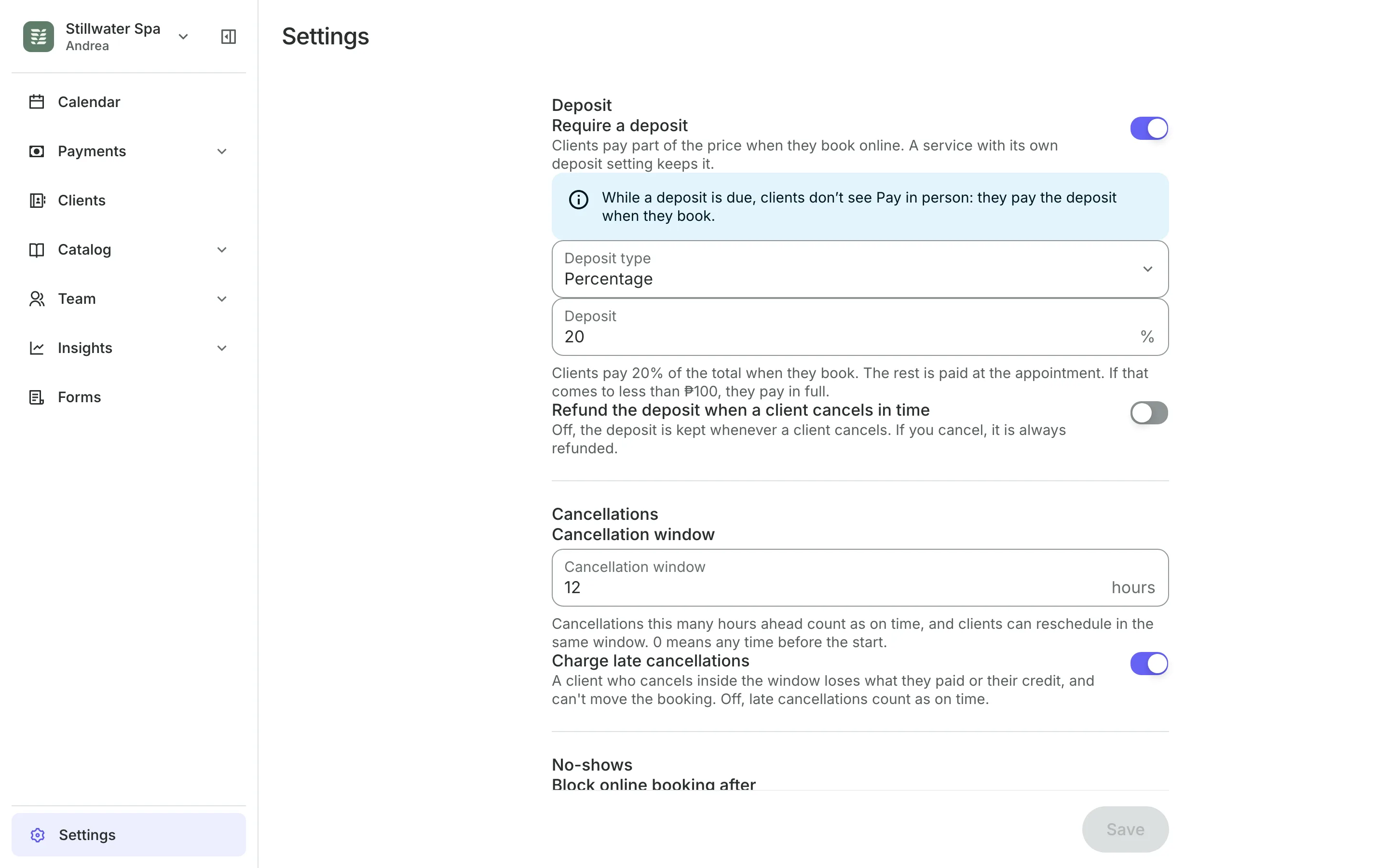
Ask for part of the price when clients book online, with the rest paid at the visit. Your cancellation window decides when a client can still cancel or change the time for free.
- A fixed amount or a percentage, or a deposit per service
- Keep or refund the deposit on an in-time cancel
- Block online booking after repeat no-shows
Rooms and add-ons
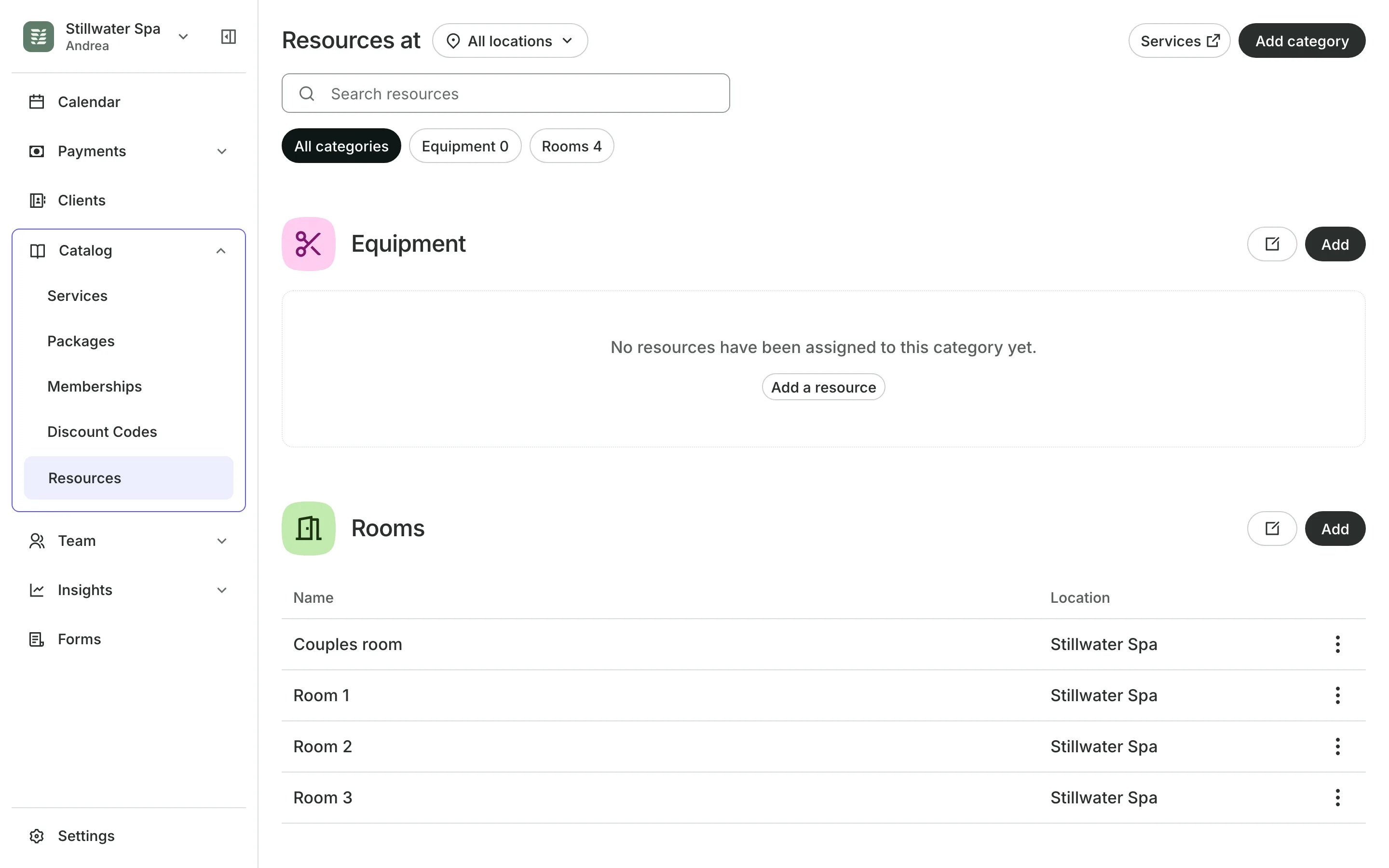
Keep rooms from double booking
Rooms are booked with the service, so a time shows only when one is free.
Equipment such as a laser is checked the same way as a room.
Add-ons add to the price and the time, like a hair mask.
Required add-ons make clients pick one before they can book.
At the counter
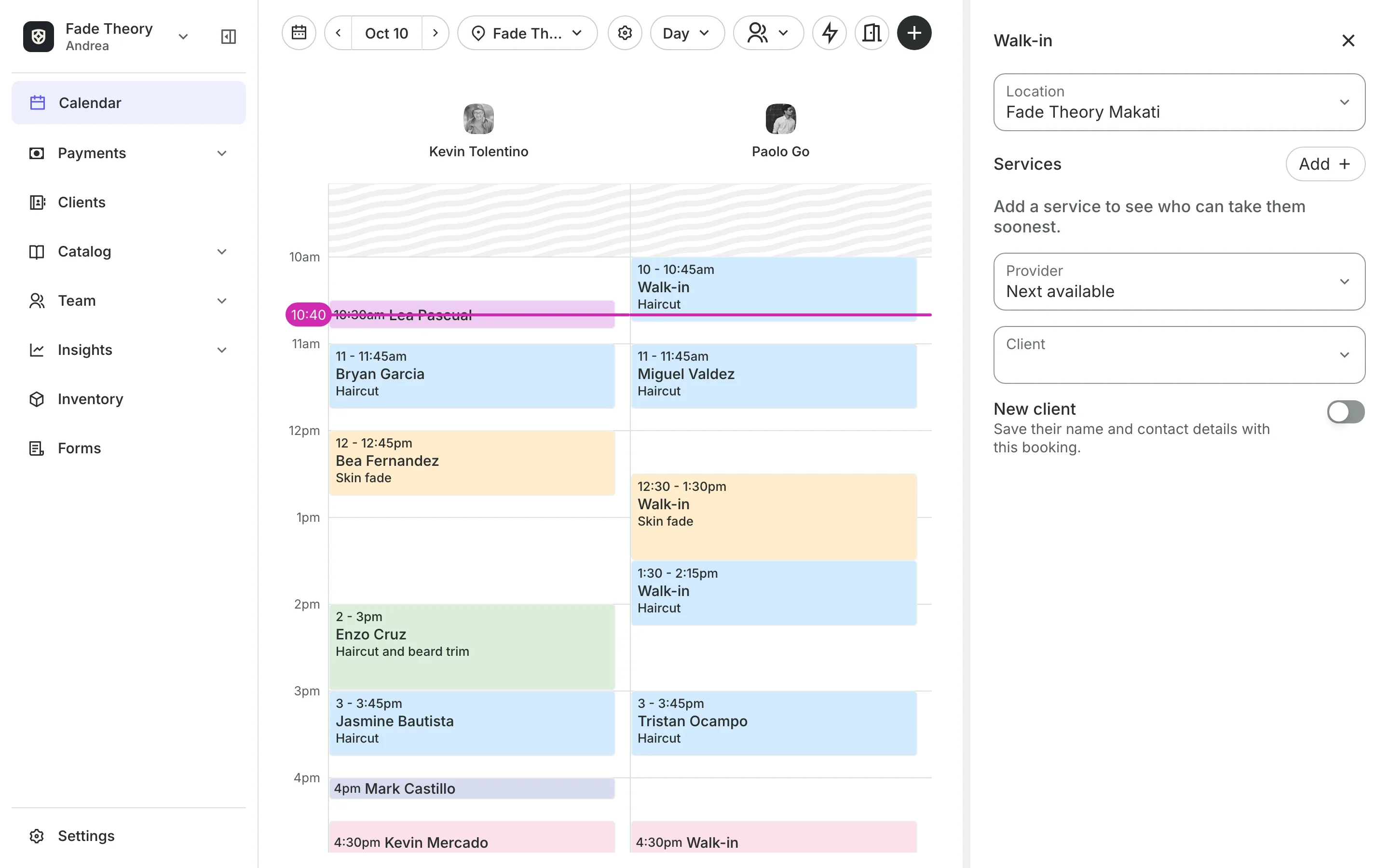
Book walk-ins and regulars fast
Walk-in lists who can take a client and when, soonest first. One tap books them. For regulars, book a whole run of visits at once.
- Walk-ins with or without a name
- Repeat every week, or every 2, 3, or 4 weeks
- Taken dates and closures are skipped and named
Start booking appointments
Add your services and your team, then share your booking page.
1
Add your services
Each with a price, a length, and the team members who offer it.
2
Set your team's hours
Clients are only offered times when someone who does the service is working.
3
Share your booking page
Clients pick a service, a person, and a time. The booking is on your calendar straight away.
Booking for any business
Tell us what you run and Onsuki sets itself up for it: your words, your way of booking, the screens you need.


















Frequently asked questions
Yes. They pick a team member, or any available one. Only times that fit your hours and your team's hours are shown.
No. Keep one service and give each staff level or location its own price. A level's price wins over a location's price.
Yes. Your team can book any open time on the calendar, including times off your booking site's start-time grid. Working hours and closures still apply.
Yes. Turn on Make this a repeating event when you book, and choose how often and when it ends. Each visit is paid when the client comes in.
7 days, with every feature of your plan. You choose a plan when the trial ends.
No. You sign up with your email or Google account, tell us what you run, and start setting up.
Each plan is one monthly price with unlimited bookings. See the pricing page for the plans and what each includes.
Take bookings and get paid, the simple way.
Free 7-day trial. No credit card required.