PWD and senior discounts, worked out for you
Check a client's ID once. Their discount comes off every sale after that, at the front desk and when they book online.
Free for 7 days. No card needed.
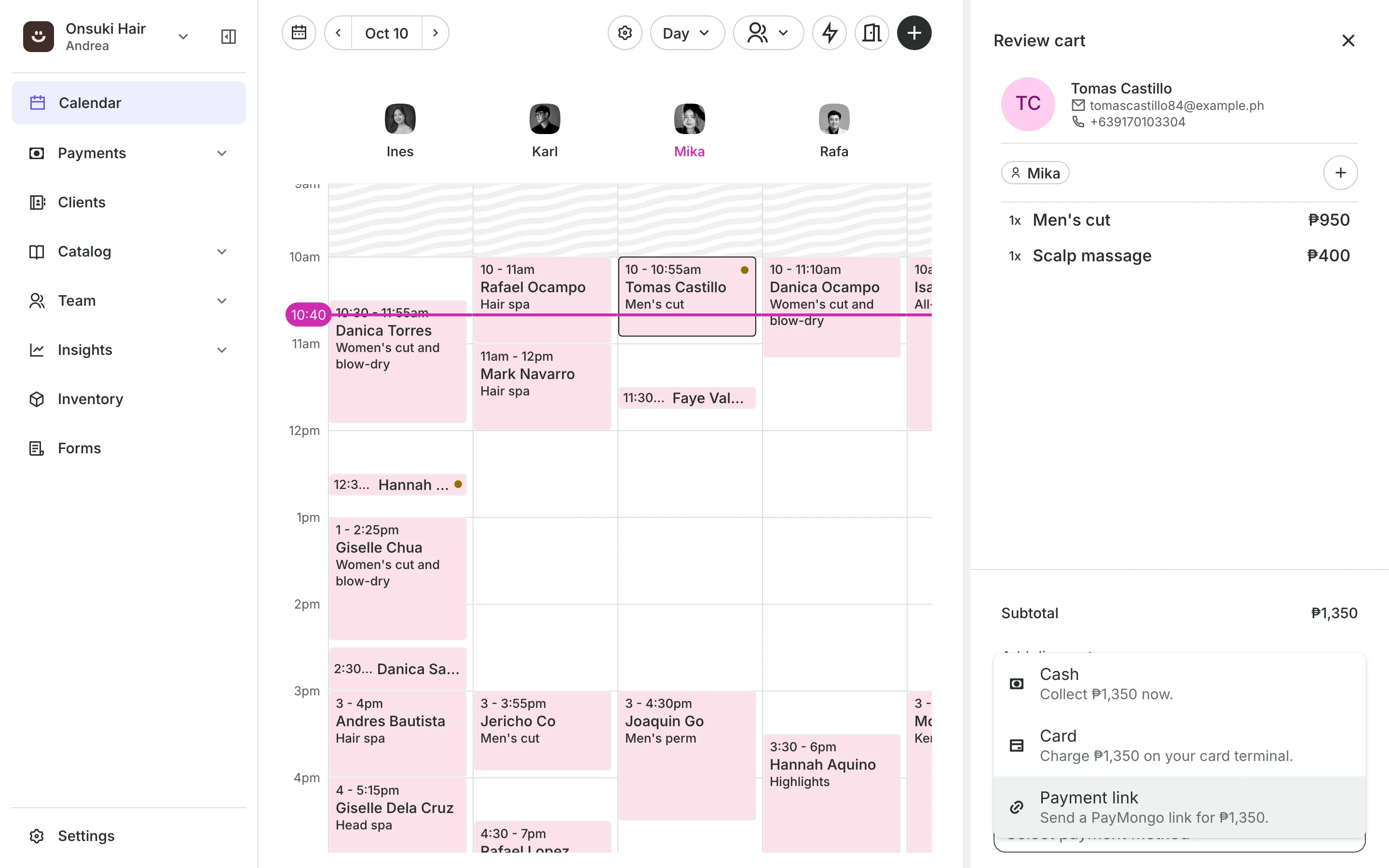
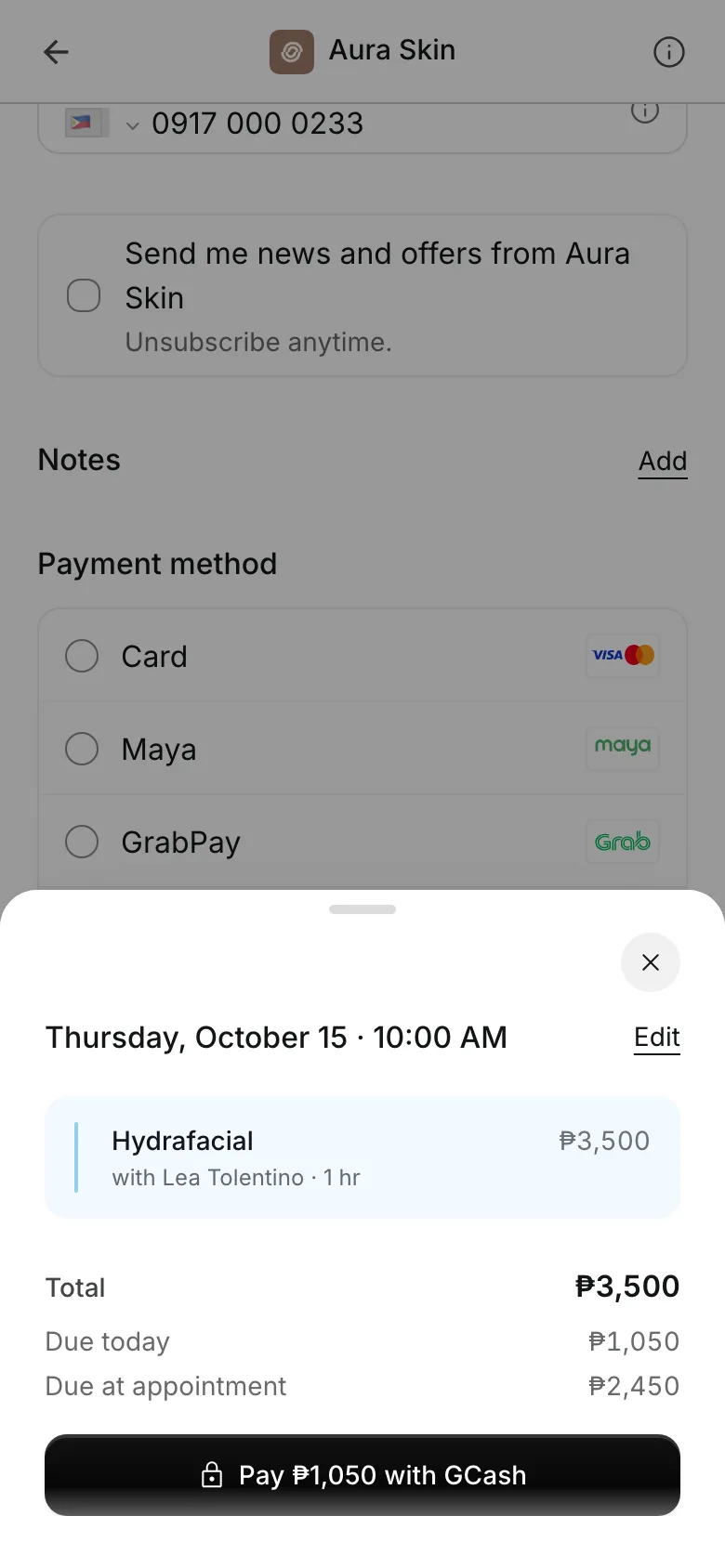
Clients pay online or in person













A client tag that carries a price
A discount group is a client tag with a percent off. Put a client in it once, and every price they pay follows it.
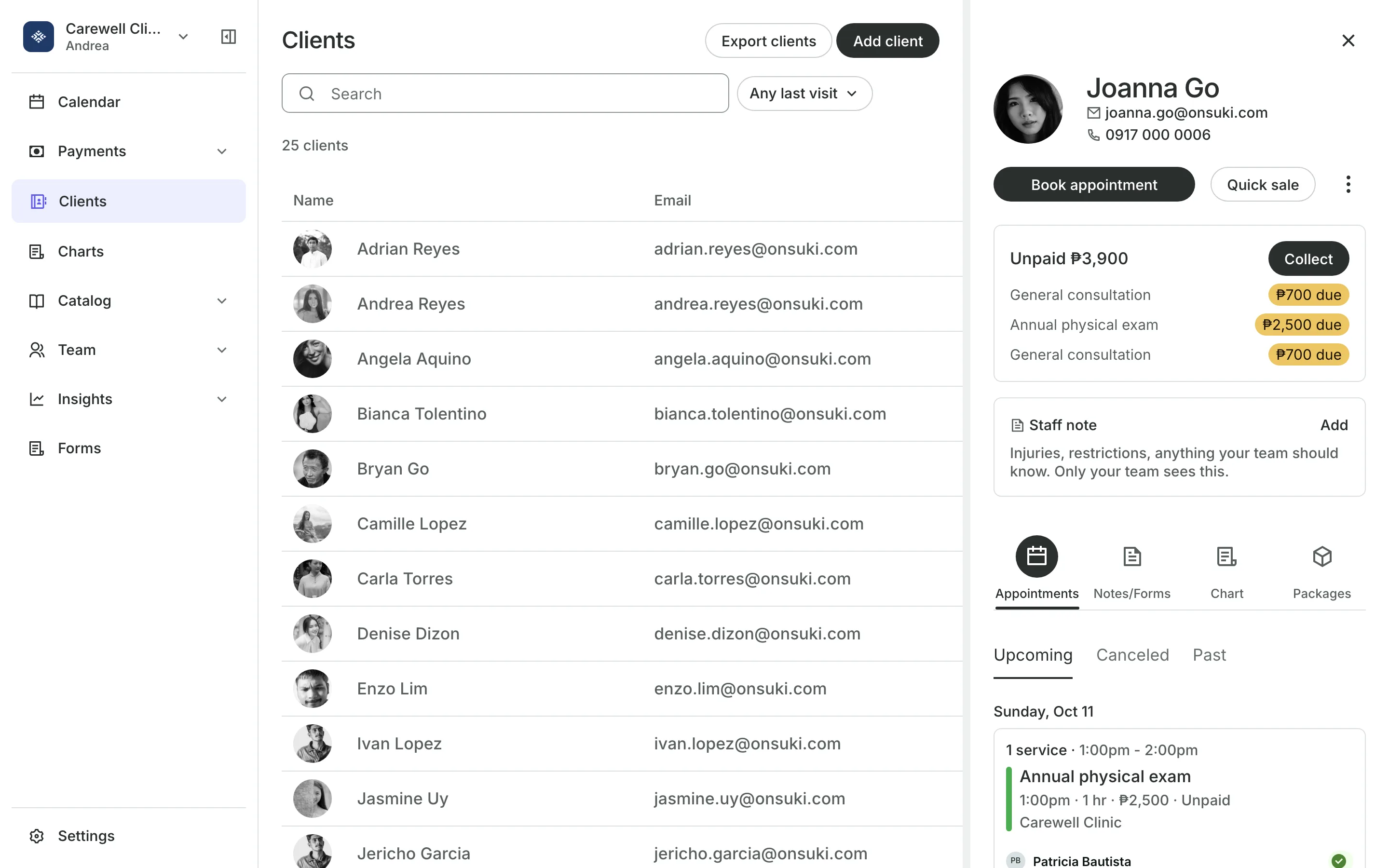
Groups
Start from PWD, senior, or student
Turn on a starter group, or make your own for members, staff, or partners. Each group says how much comes off and what it covers.
PWD and Senior citizen start at 20% off and ask for an ID number.
Student starts at 10% off, or set any percent you choose.
Applies to services, classes, and packages, plus events and products if you want.
Front desk
Verify once, then it applies itself
Check the card and add the group on the client's profile.
The ID number is saved with it: PWD ID, OSCA ID, or school ID.
Who verified it and when is kept on the profile.
Only your team can add a client to a group, one client at a time.
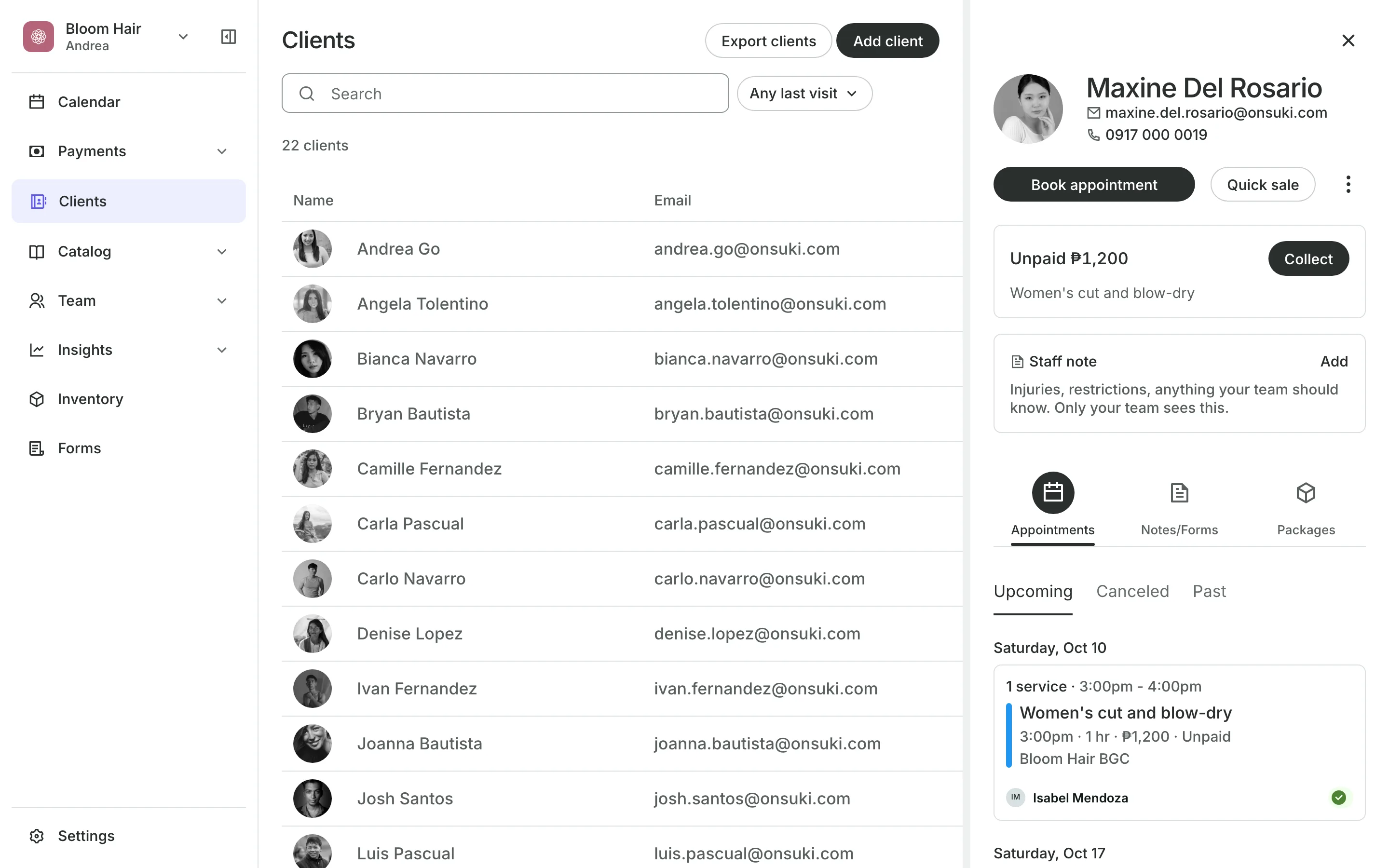
Checkout
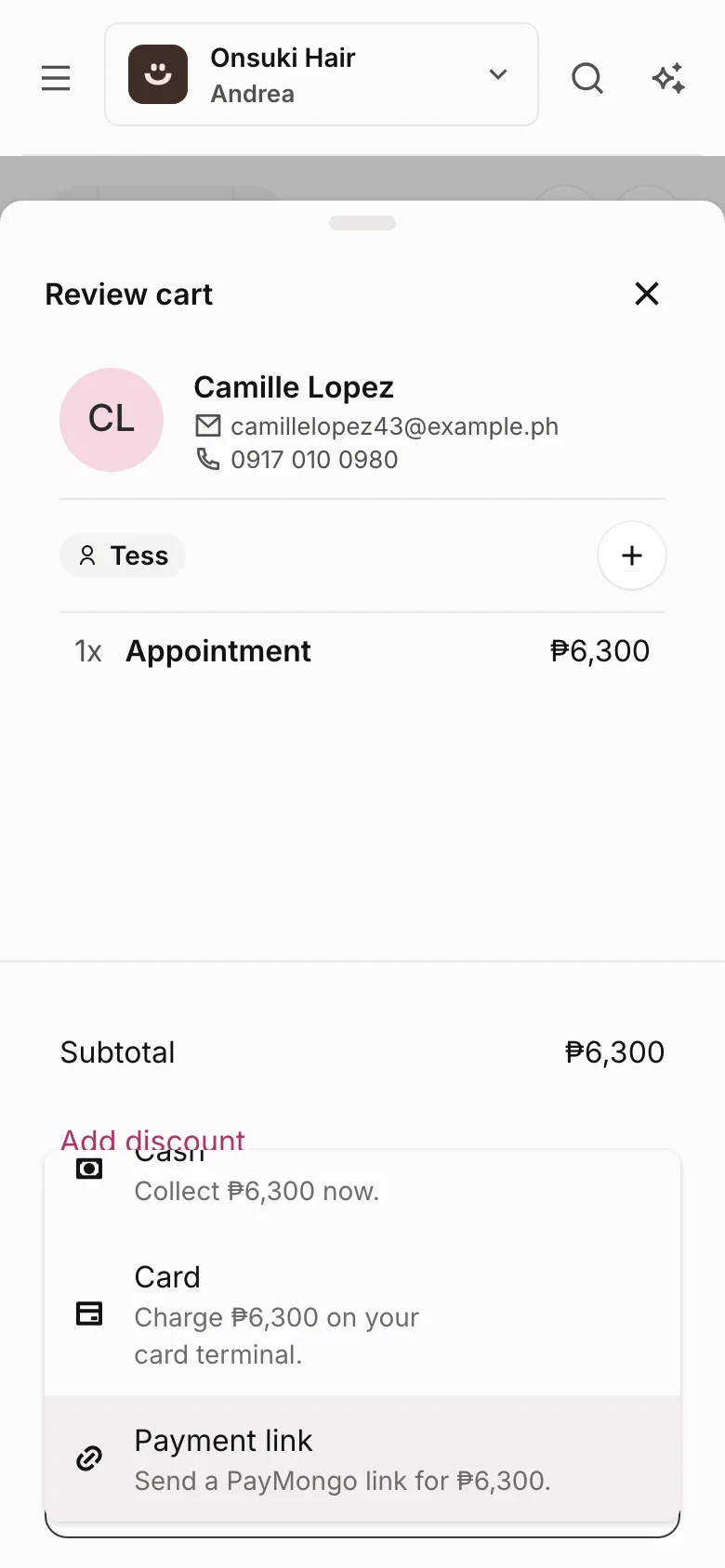
The right price at the desk and online
At the front desk, the discount is on the sale before you charge.
Online, clients signed in to your booking site see their price at checkout.
The receipt names it, like "PWD discount (20%)", with the client's ID number.
Refunds give back what the client paid.
The math
VAT out first, if you are VAT-registered
Turn on VAT-registered in Settings, Business, and every PWD and Senior citizen group takes the 12% VAT out of the price, then 20% off. That is the price divided by 1.12, times 0.80, rounded to the centavo. With it off, it is 20% off the price.
Never stacked with a promo code. The larger of the two comes off.
Two groups on one client? The larger discount wins.
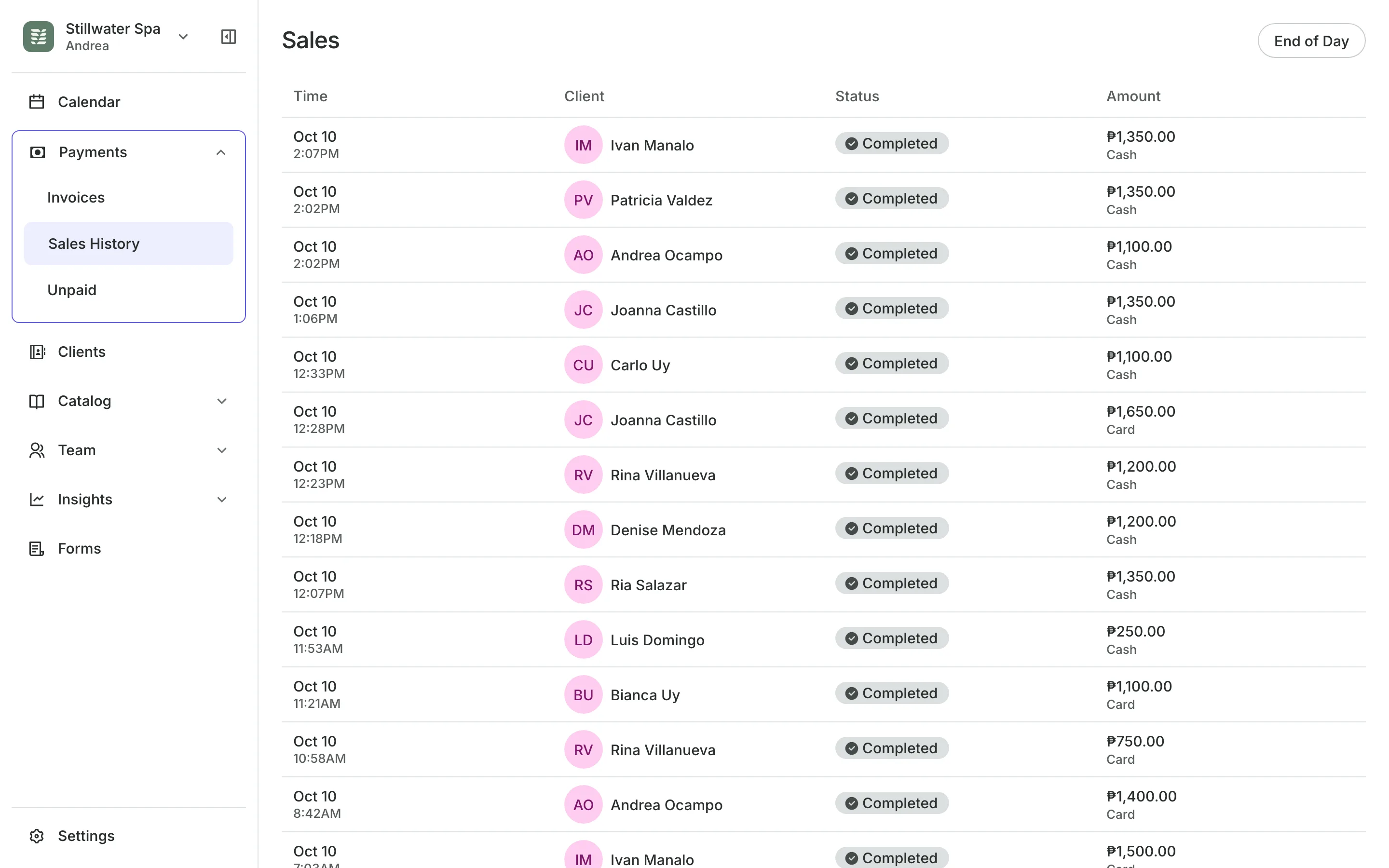
Every discount shows in your sales report.
See worked examples in the guide.
Set up discount groups today
Turn on a group, mark a client, and sell as you do now.
1
Turn on a group
In Settings, Business, Client Tags, add PWD, Senior citizen, or Student, or make your own. If you are VAT-registered, turn that on in Settings, Business.
2
Verify the client
Check their ID and add the group on their profile, with the ID number.
3
Sell as usual
Their price comes down at the front desk and when they book online signed in.
Booking for any business
Tell us what you run and Onsuki sets itself up for it: your words, your way of booking, the screens you need.
















Guides on Discount Groups

Frequently asked questions
No. If a client in a group also enters a promo code, the larger of the two comes off, never both. A code that loses is not used up.
Turn on VAT-registered in Settings, Business. It is off until you turn it on, and every PWD and Senior citizen group follows it: Onsuki takes the 12% VAT out of the price first, then 20% off, which is the price divided by 1.12, times 0.80. With it off, it is 20% off the price.
No. Only your team can, from the client's profile, after checking their ID. The profile shows who added the group and when.
That depends on your business, so check with your accountant. You choose the groups, the percent, and what each one covers.
7 days, with every feature of your plan. You choose a plan when the trial ends.
No. You sign up with your email or Google account, tell us what you run, and start setting up.
Each plan is one monthly price with unlimited bookings. See the pricing page for the plans and what each includes.
See it with your own business.
Free setup, with a real person.
Free for 7 days. No card needed.