Keep every peso of every transfer
Clients pay straight to your own GCash, QR Ph, or bank account. Onsuki takes a 0% fee, and every payment lands on its booking, so End of Day totals each payment method for you.
Free 7-day trial. No credit card required.
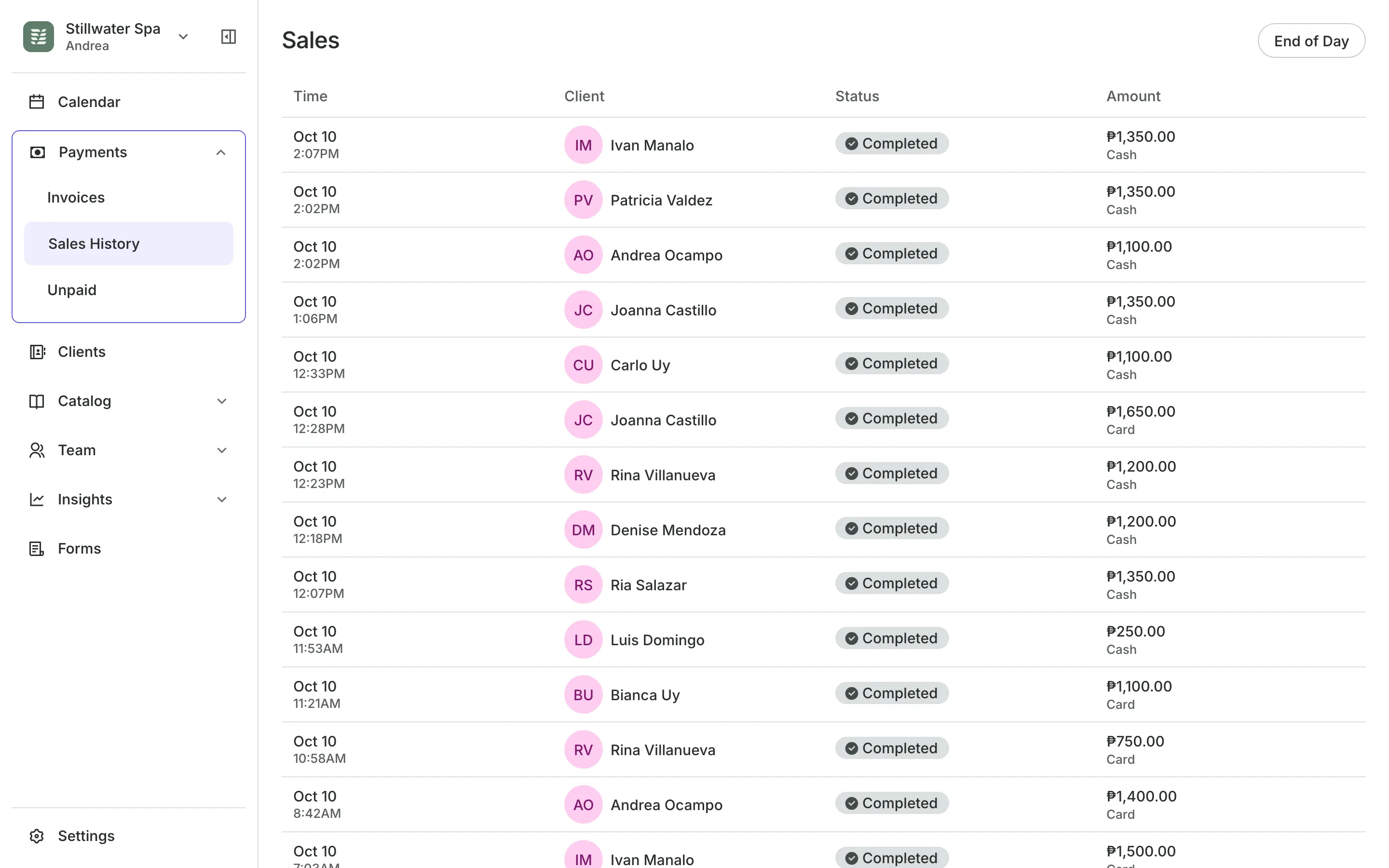
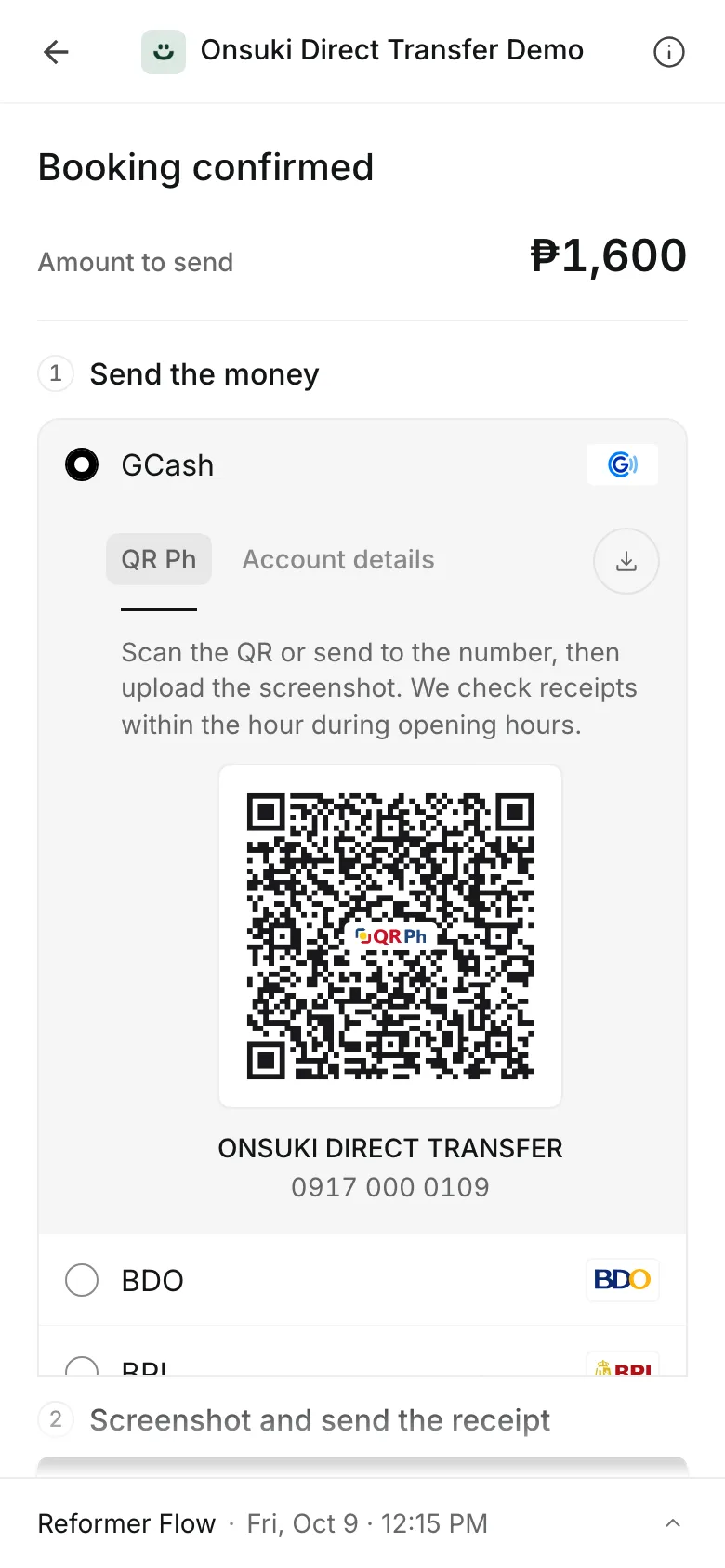
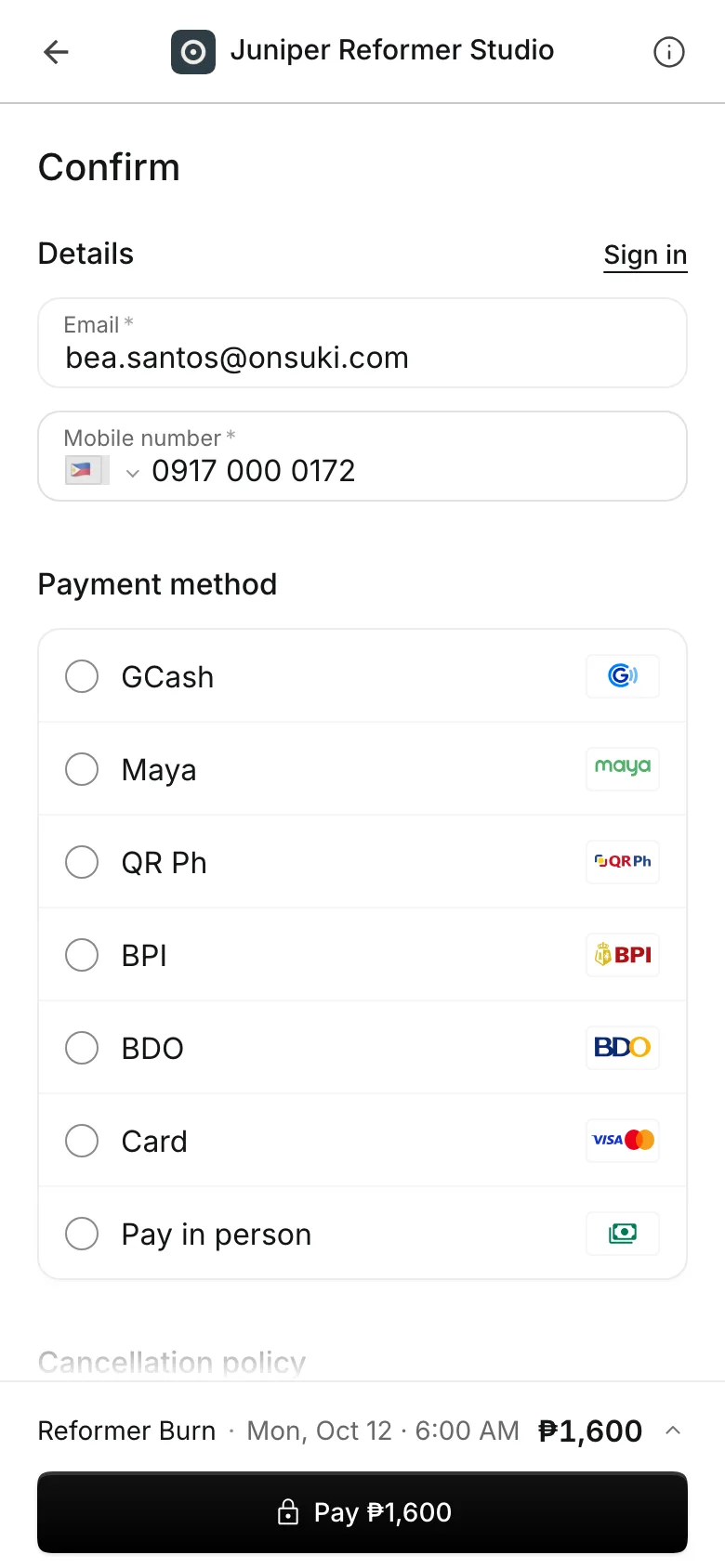
Clients pay online or in person









Transfers without the screenshots in your chats
No more matching receipts in Messenger to bookings in a notebook. Clients pay, upload the receipt, and you approve it in one tap.
Your accounts
Your own accounts, with the amount filled in
Add the accounts clients send money to. Each one shows at checkout in the order you set.
GCash, QR Ph, and banks are each added with your account name and number or your QR.
Your QR, redrawn at each checkout with the exact amount, so clients scan and pay.
A 0% fee from Onsuki, and the money goes straight to your account.
Per location accounts show only to clients booking at that branch.
Approvals
Approve a receipt in one tap
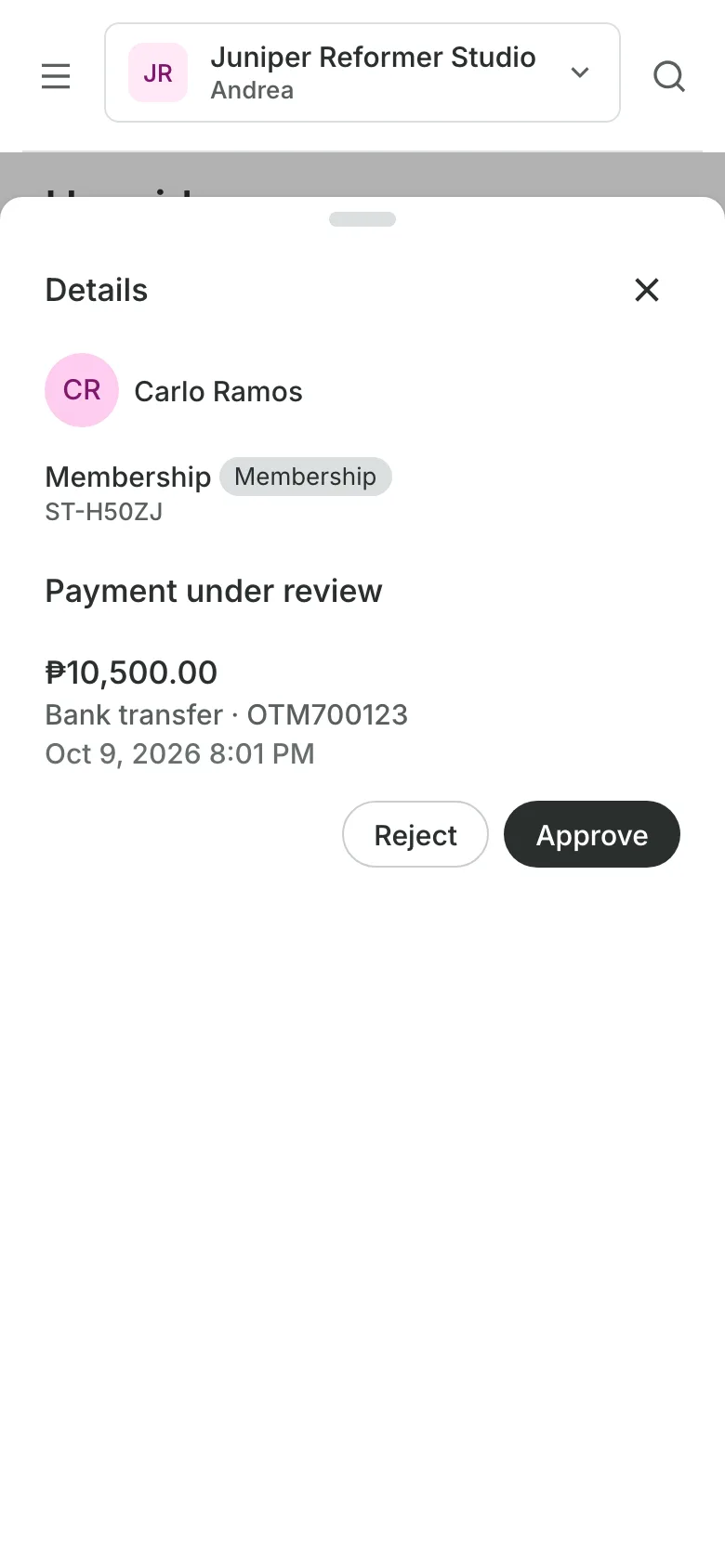
The client uploads a screenshot of the transfer, and the booking is held while you check. Match the amount and reference against your GCash or bank app, then decide.
- Approve, and the booking is confirmed
- A package or membership is usable at once
- Reject with a reason, and the client is emailed it
One list
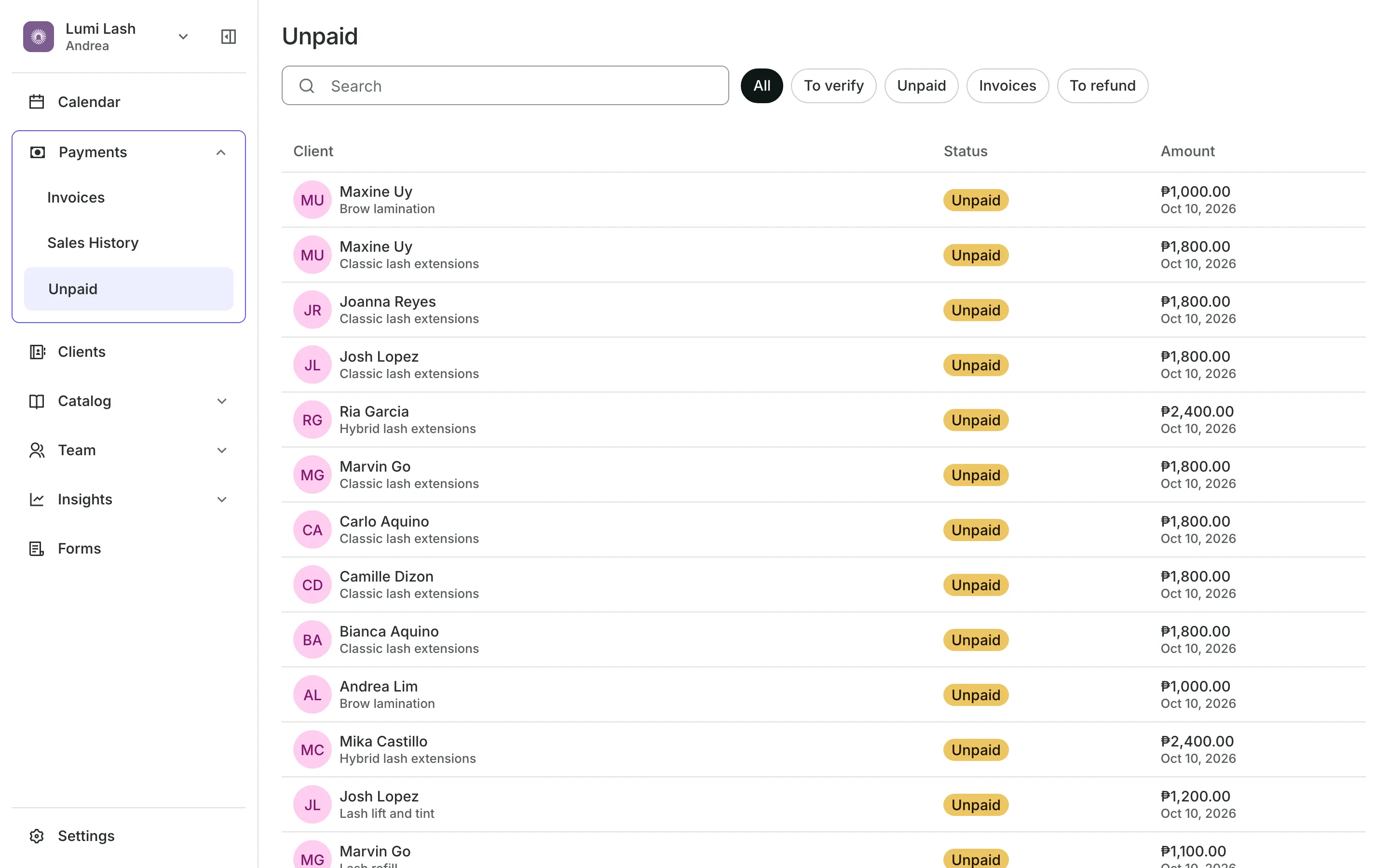
Everything to check, in one place
To verify lists every receipt waiting, with the amount, method, reference, and when it was sent.
A count in the menu shows how many receipts are waiting.
Overpaid receipts record what was owed and put the extra on To refund.
Pay links copied from Unpaid bring the client's receipt back to the same list.
Reconciliation
A day that adds up on its own
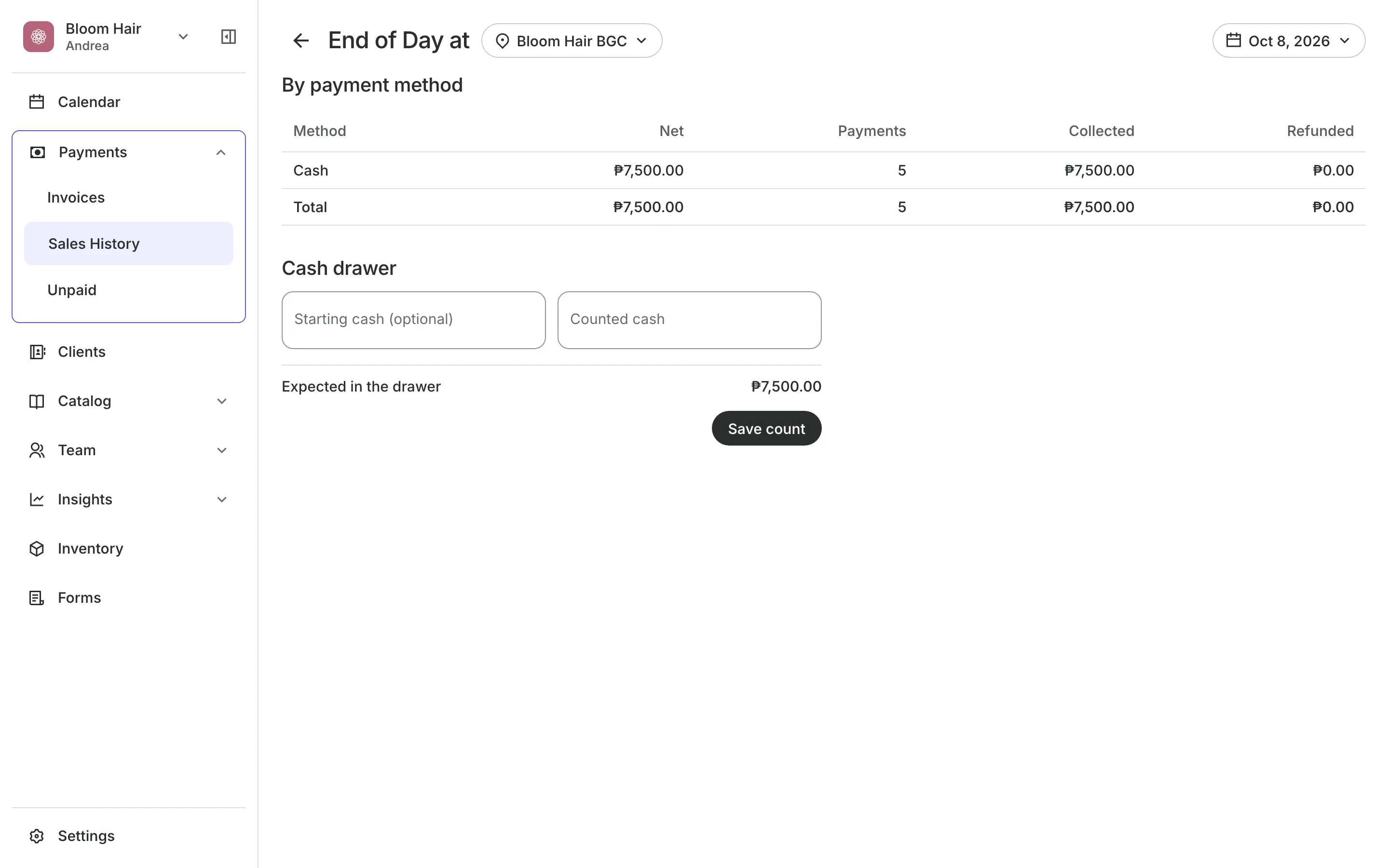
Every approved payment is recorded on its booking with the method and reference, so Unpaid, Sales History, and End of Day agree without a spreadsheet.
- Unpaid shows only what is still owed
- Sales History lists each payment with its method and reference
- End of Day totals each method to match against your GCash and bank apps
Start taking transfers today
Add an account, switch it on at checkout, and share your booking page.
1
Add your account
Choose GCash, QR Ph, or your bank, enter the account details, and upload your QR.
2
Turn it on at checkout
Switch the account on and drag it to where clients should see it.
3
Approve as receipts arrive
Receipts wait under To verify. Approve one, and the booking is confirmed.
Booking for any business
Tell us what you run and Onsuki sets itself up for it: your words, your way of booking, the screens you need.













Frequently asked questions
Onsuki takes a 0% fee on payments to your own GCash, QR Ph, or bank account. The money goes straight from the client to you.
Onsuki tells you when you upload it. Clients then see your QR as it is and type the amount themselves. An account number on its own works too.
It is held, so nobody else takes the time or the spot. Approve, and it is confirmed. Reject, and the time opens up again and the client is asked to book again.
Anyone with the Approve payments permission. You choose who has it.
Yes. Copy the pay link from Unpaid and send it in a chat. The client pays your account, uploads the receipt, and it comes back to To verify.
7 days, with every feature of your plan. You choose a plan when the trial ends.
No. You sign up with your email or Google account, tell us what you run, and start setting up.
Each plan is one monthly price with unlimited bookings. See the pricing page for the plans and what each includes.
Take bookings and get paid, the simple way.
Free 7-day trial. No credit card required.