Send an invoice they can pay online
Bill a client for services, products, packages, or a custom charge. They pay from the link by transfer to your own GCash, QR Ph, or bank account, or by card or e-wallet when PayMongo is on.
Free 7-day trial. No credit card required.
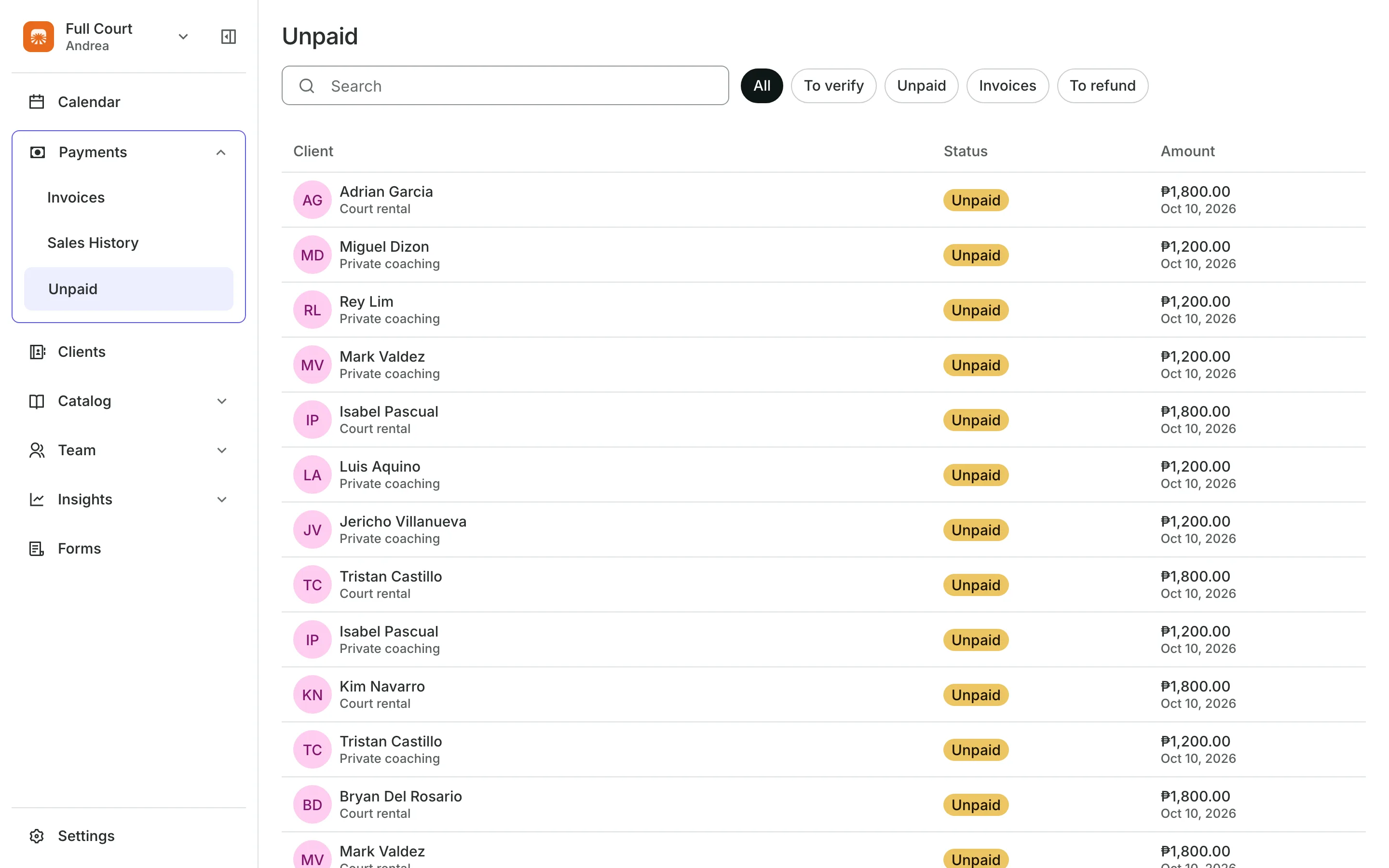
Clients pay online or in person






Bill clients without chasing them
Write the invoice, send it, and see when it is paid. Every open invoice also shows on your Unpaid list.
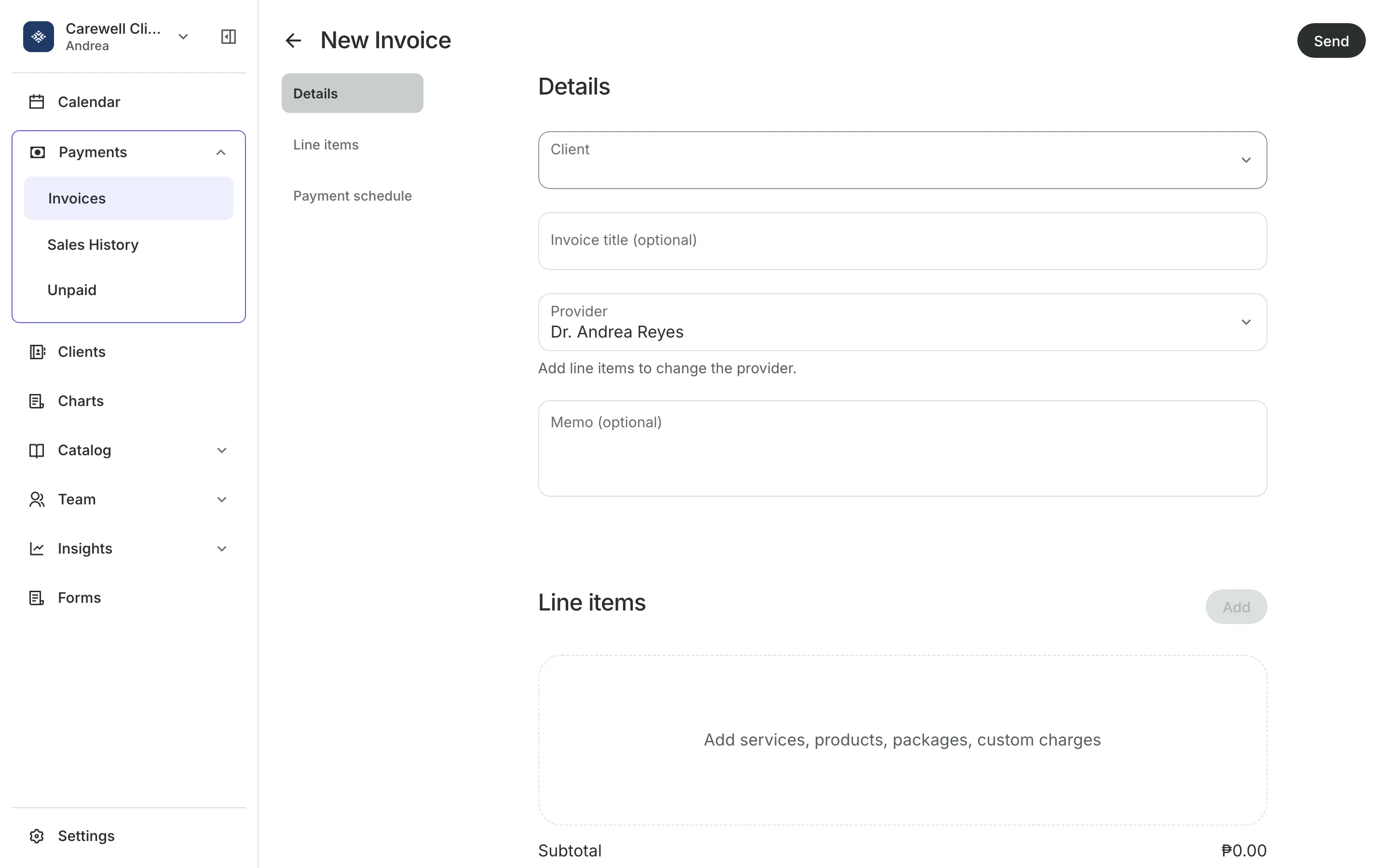
Write
Write the bill from your catalog
Line items come from your services, products, and packages, or a custom charge.
Discounts take money off the whole invoice.
Due date sets when it is owed, and it reads Past due after.
Drafts save as you go, so you can finish later.
Pay online
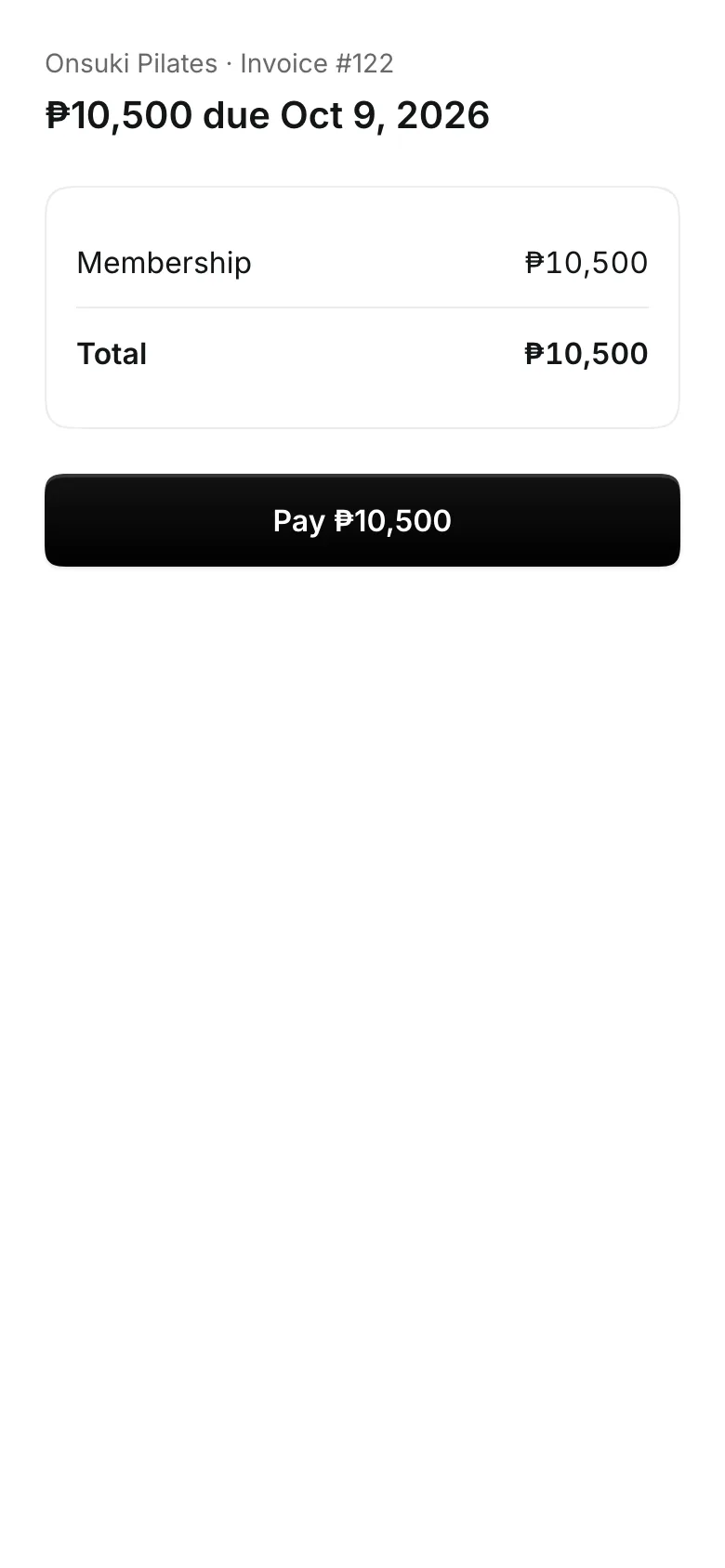
Let them pay from the link
The client opens the email, checks each item and the total, and pays without signing in.
- GCash, QR Ph, and bank transfer with a receipt upload
- Card and e-wallet online when PayMongo is on
- An emailed receipt once it is paid
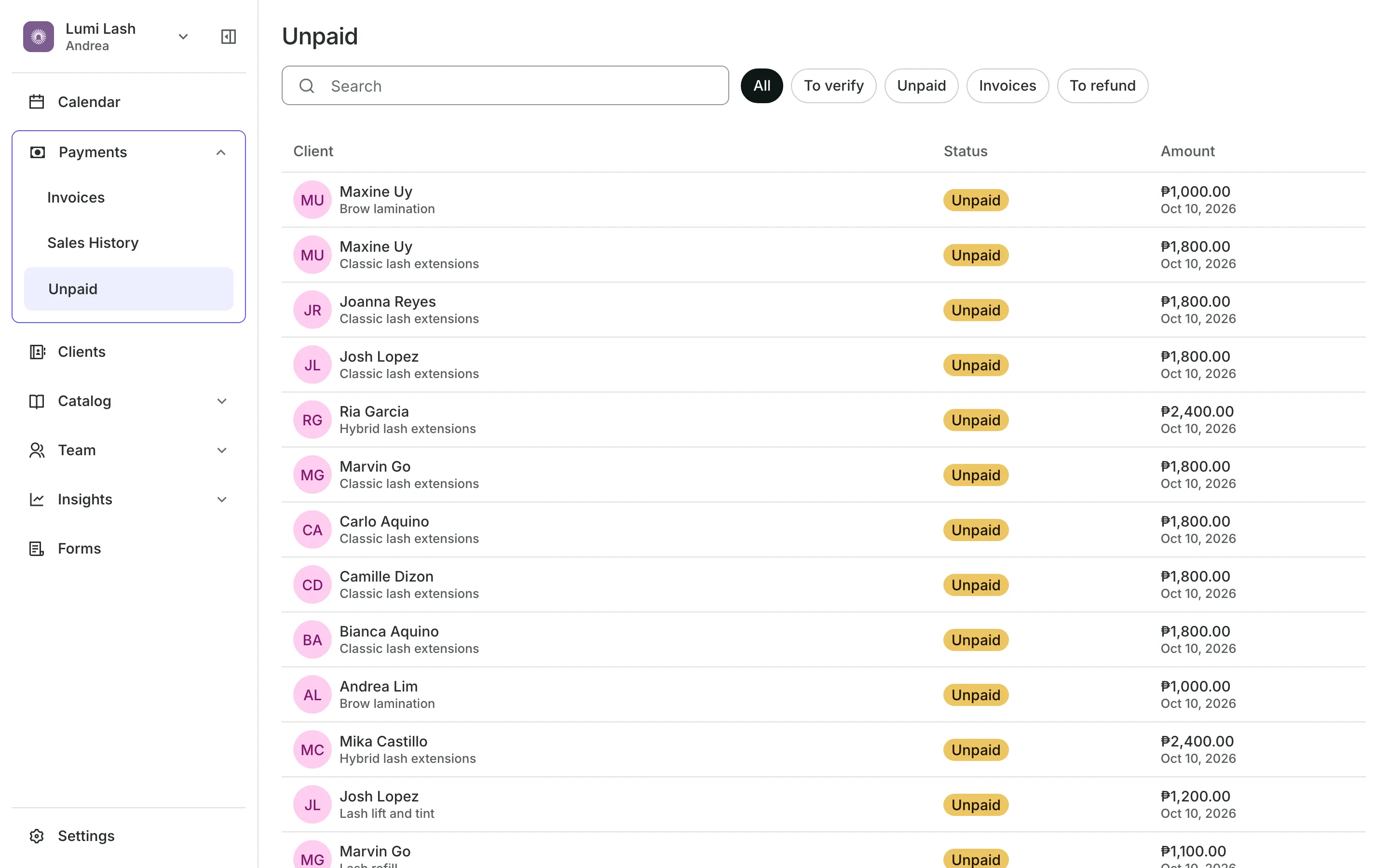
Status
See which invoices are paid
Open means sent and not yet paid, or a receipt waiting for you.
Past due means the due date has passed.
Paid means the client paid online or you approved their receipt.
Refunded shows when money went back, in full or in part.
Follow up
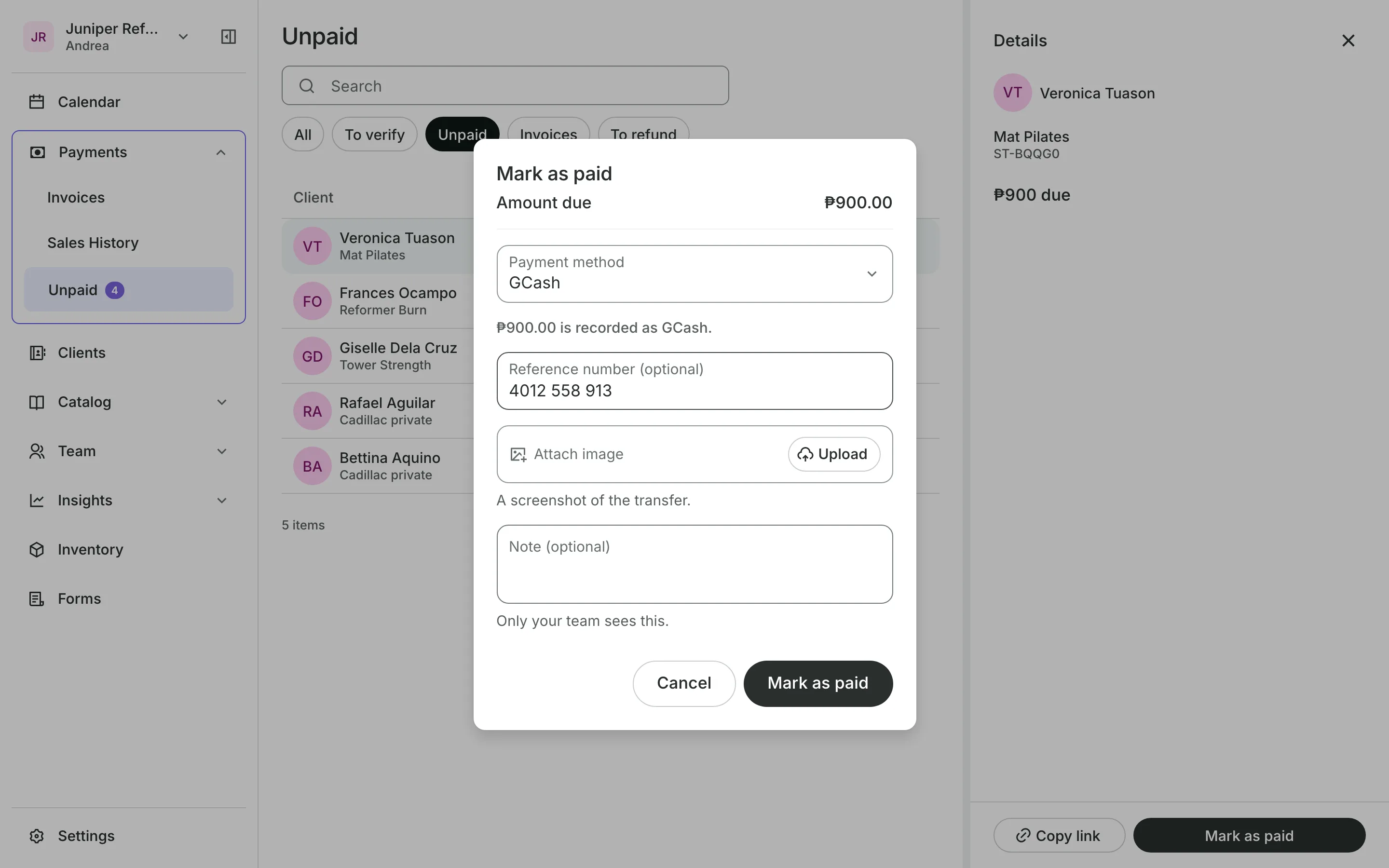
Follow up without starting over
Each invoice's menu resends it, copies the pay link for a chat, or records a payment made another way.
- Resend the email or copy the link
- Mark as paid for cash, card, or a transfer
- Cancel an invoice so it can't be paid
Send your first invoice
Pick the client, add what they owe, and send it. The client pays from the email.
1
Choose the client
Search for the client or add a new one. They need an email address.
2
Add the items
Add services, products, packages, or a custom charge, and set the due date.
3
Send it
The client gets an email with a link to pay, and the invoice shows as Open.
Booking for any business
Tell us what you run and Onsuki sets itself up for it: your words, your way of booking, the screens you need.
















Frequently asked questions
No. They pay from the link in the email without signing in.
Yes. Mark as paid records cash, card, or a transfer you took outside the link.
Yes, until any part of it is paid, and not while a receipt is waiting. A canceled invoice can't be paid.
7 days, with every feature of your plan. You choose a plan when the trial ends.
No. You sign up with your email or Google account, tell us what you run, and start setting up.
Each plan is one monthly price with unlimited bookings. See the pricing page for the plans and what each includes.
Take bookings and get paid, the simple way.
Free 7-day trial. No credit card required.