Sell products online and at checkout
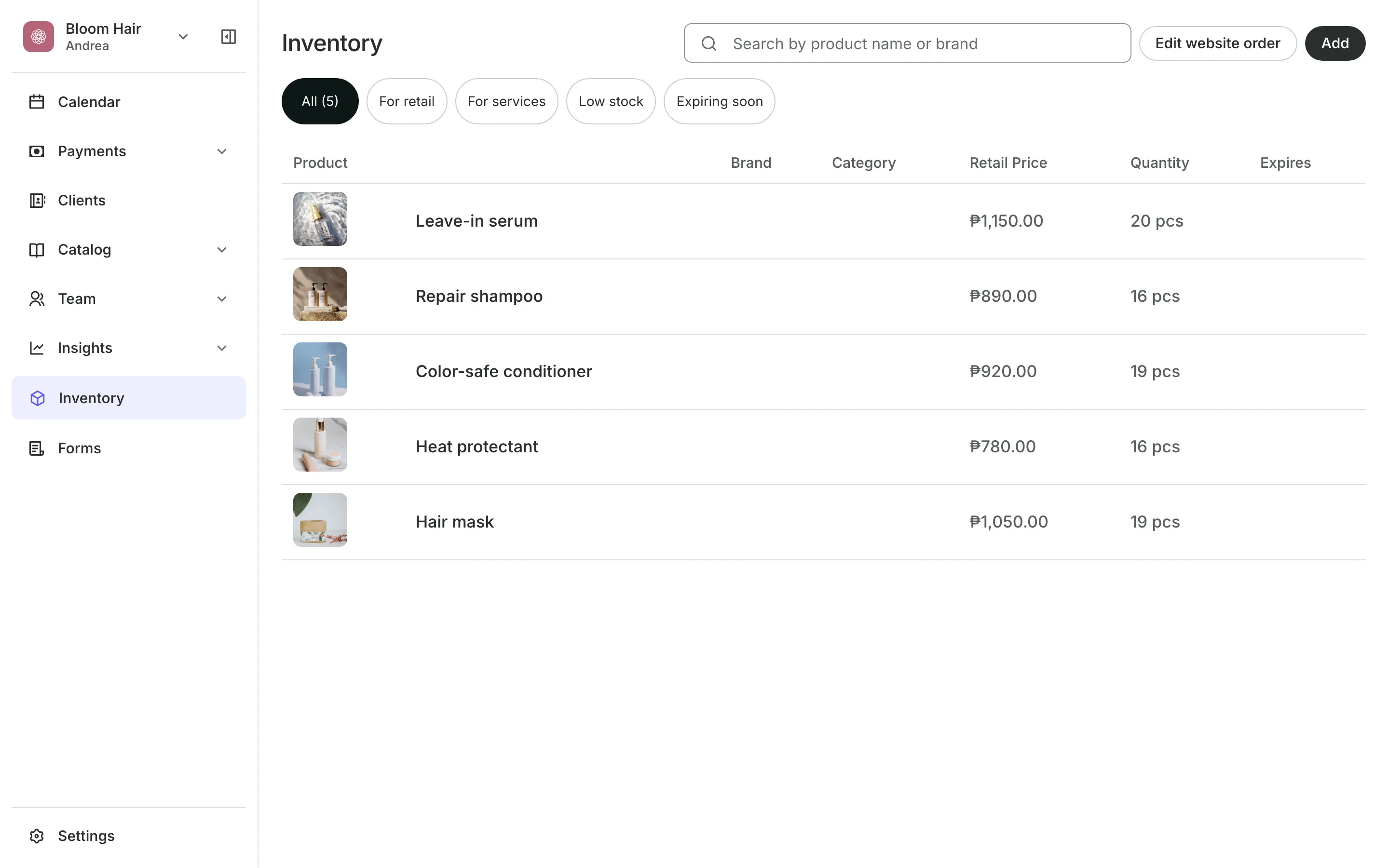
List products on your booking site's Shop page and sell them at checkout. Every counted product goes down with each sale.
Free 7-day trial. No credit card required.
Clients pay online or in person













Keep the shelf and the sales in step
Add a product once. It sells on your Shop page and at checkout, and its stock changes are listed with who made them.
Products
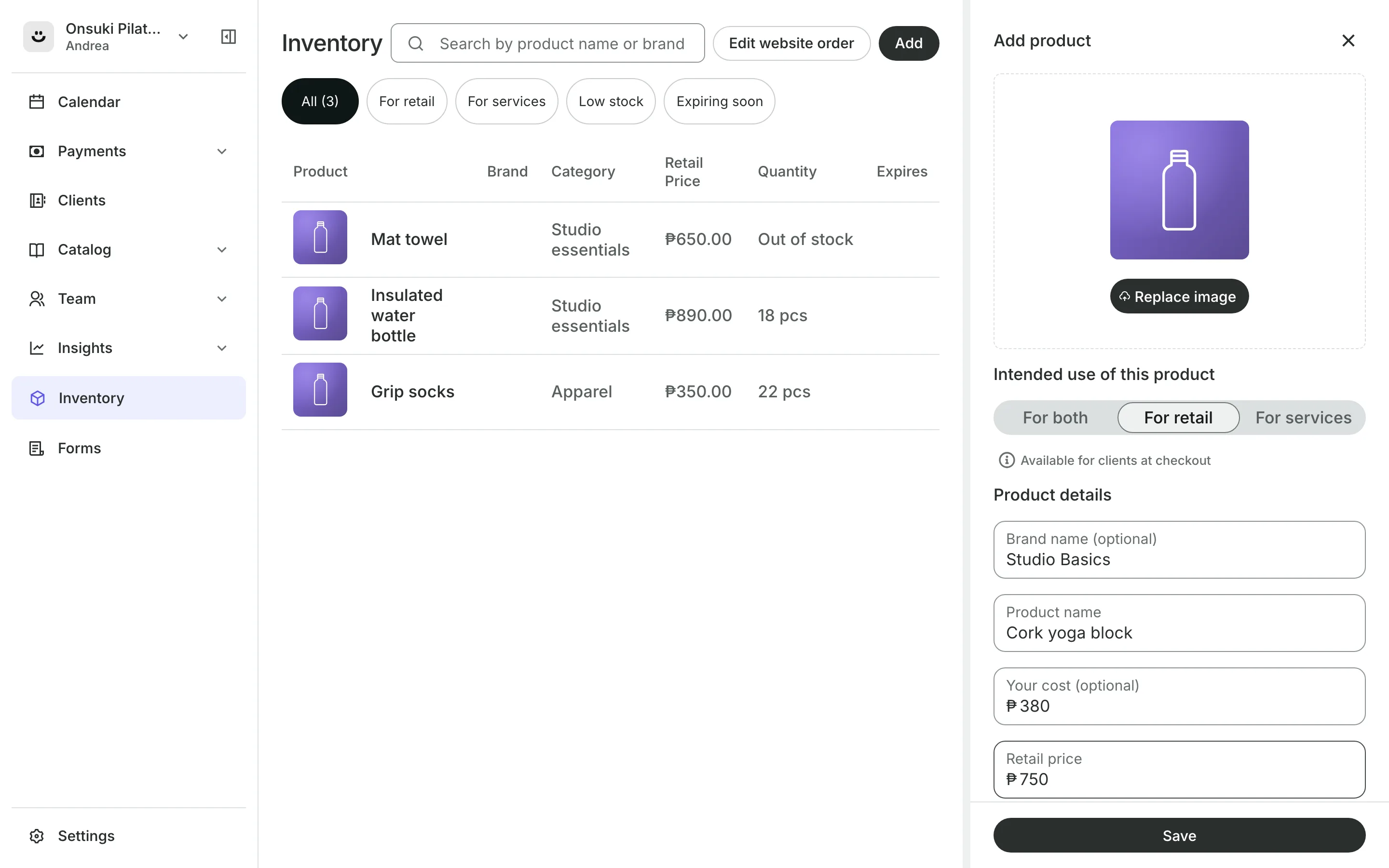
Add what you sell or use
Retail price and your own cost sit on each product.
Variants cover sizes and colors, each with its own price if needed.
For services marks supplies you use on clients and keeps them off sale.
Categories group products, with a barcode or tag if you like.
Shop
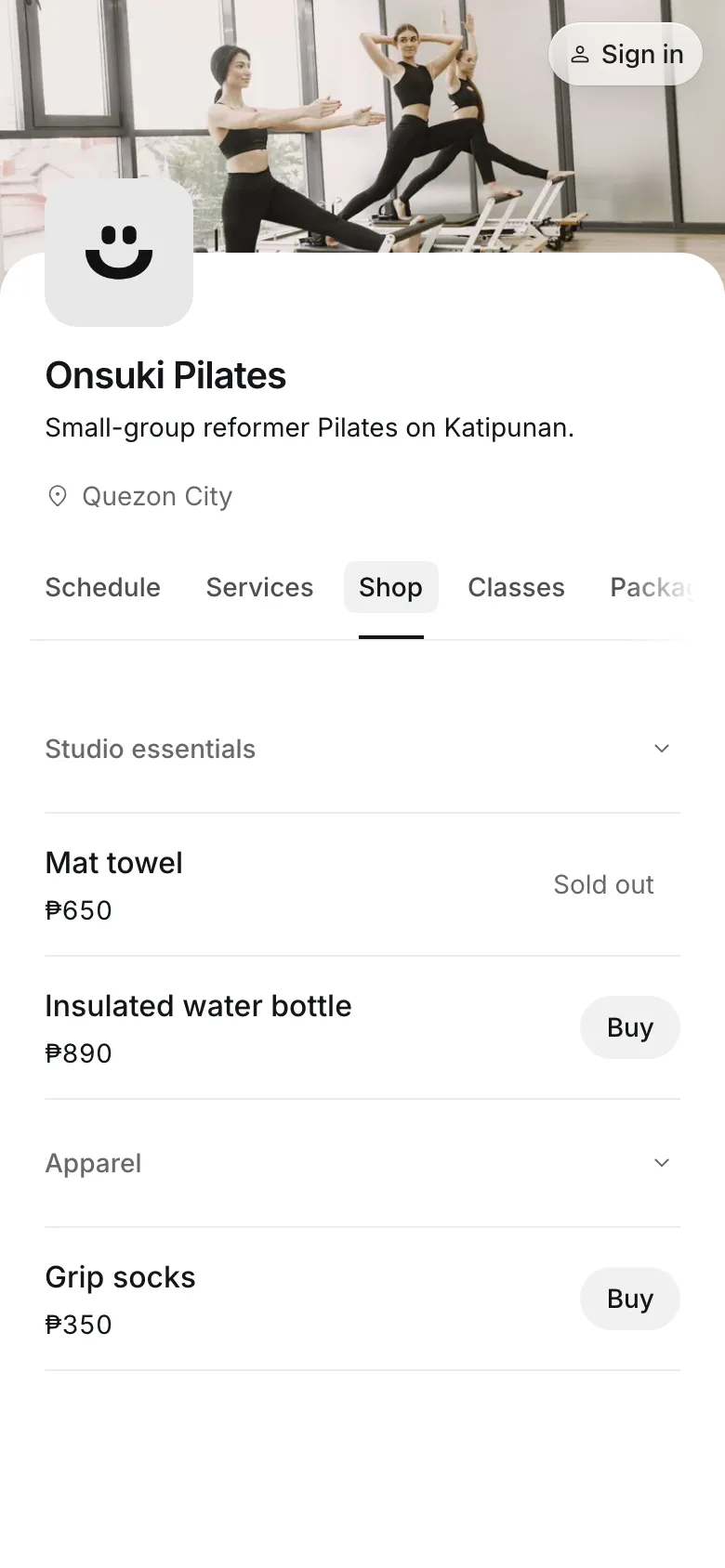
Sell online from your booking site
Your booking site's Shop page lists what you sell. Clients buy online, pay the way they pay for a booking, and pick it up at your business.
- Clients choose where to collect it
- Sold out shows when stock runs out
- Set the order of categories and products
Stock
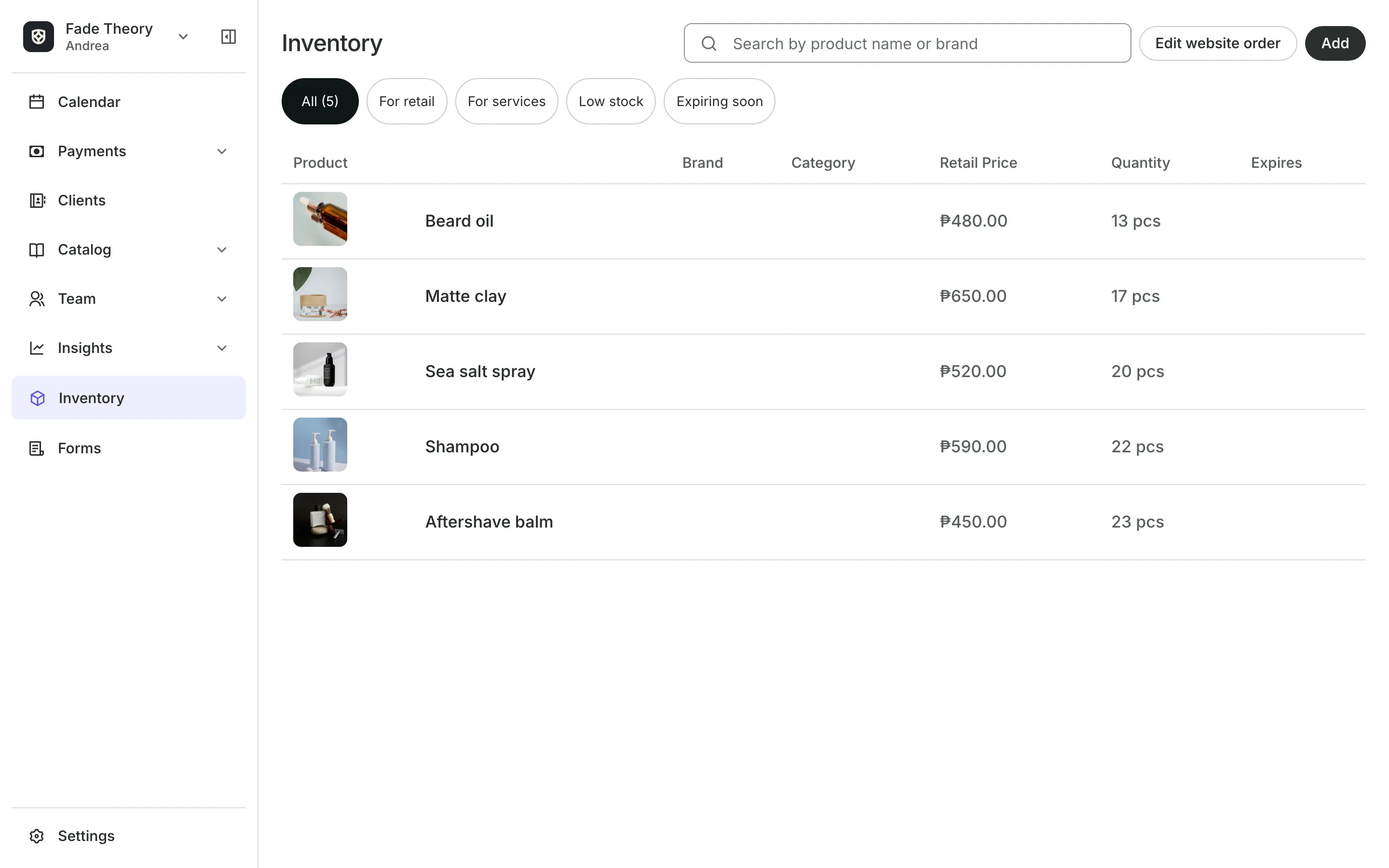
Count stock as it moves
Receive stock adds a delivery, by unit or by pack.
Adjust corrects a count with a reason: recount, damaged, or expired.
History lists every change with who made it and when.
Low stock shows products at or below the level you set.
Checkout
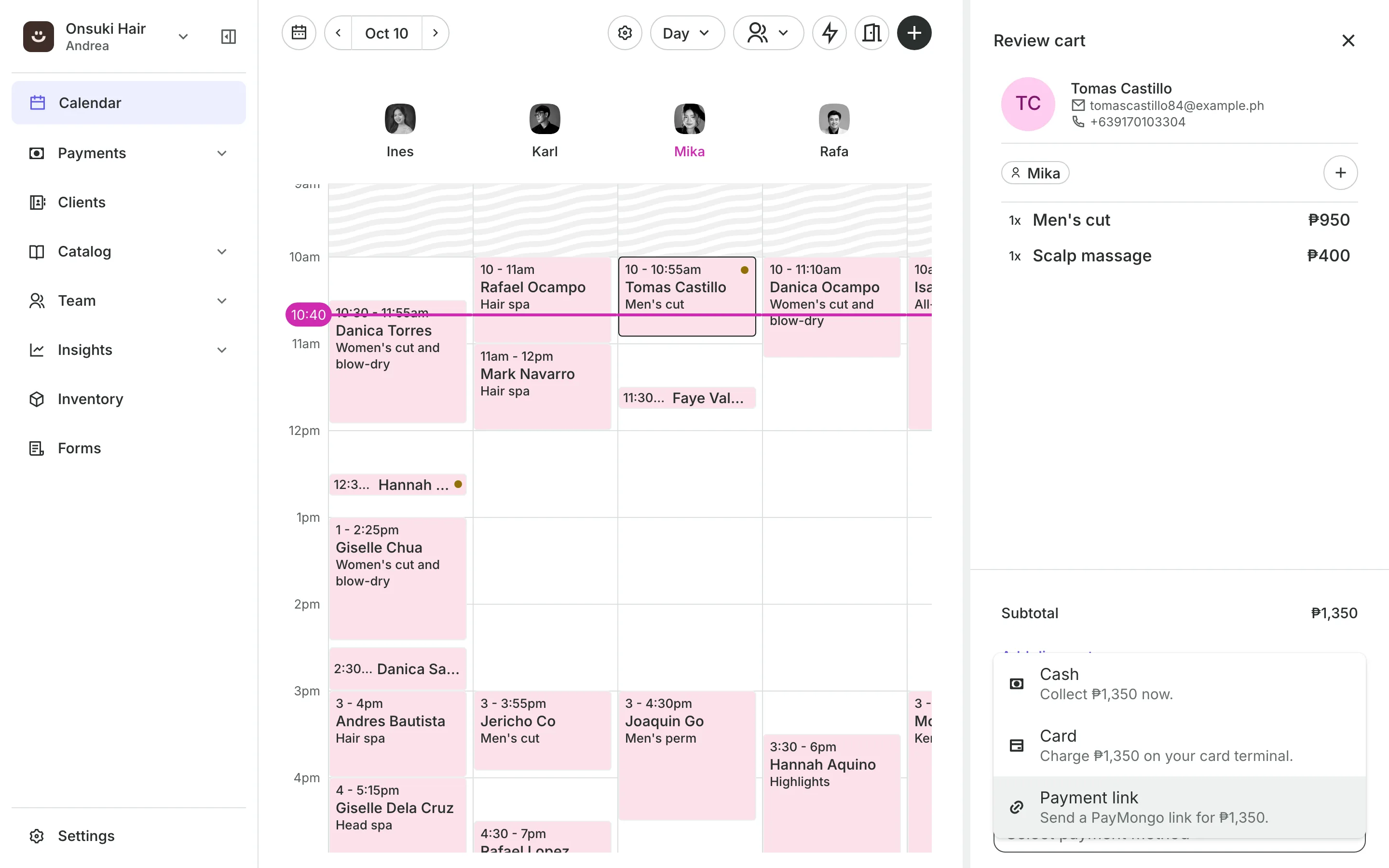
Ring up products at checkout
Add products to a client's checkout beside their services, or sell them on their own as a quick sale. Sold units come off stock on their own.
- Products and services on one sale
- The lot that expires first sells first
- Stock counted for each location
Open your shop
Add your products, enter what you have, and turn on Sell on your website.
1
Add a product
Name it, choose whether you sell it, use it, or both, and set the price.
2
Enter your stock
Enter the quantity on hand and a low quantity level.
3
List it online
Leave Sell on your website on, and it shows on your Shop page.
Booking for any business
Tell us what you run and Onsuki sets itself up for it: your words, your way of booking, the screens you need.
















Frequently asked questions
They pay the same way they pay for a booking and pick it up at your business. With more than one location, they choose where.
Yes. Turn on Track lots and expiry, and the lot that expires first sells first. An expired lot is never sold.
Use the Low stock filter on Inventory when you place orders.
7 days, with every feature of your plan. You choose a plan when the trial ends.
No. You sign up with your email or Google account, tell us what you run, and start setting up.
Each plan is one monthly price with unlimited bookings. See the pricing page for the plans and what each includes.
Take bookings and get paid, the simple way.
Free 7-day trial. No credit card required.