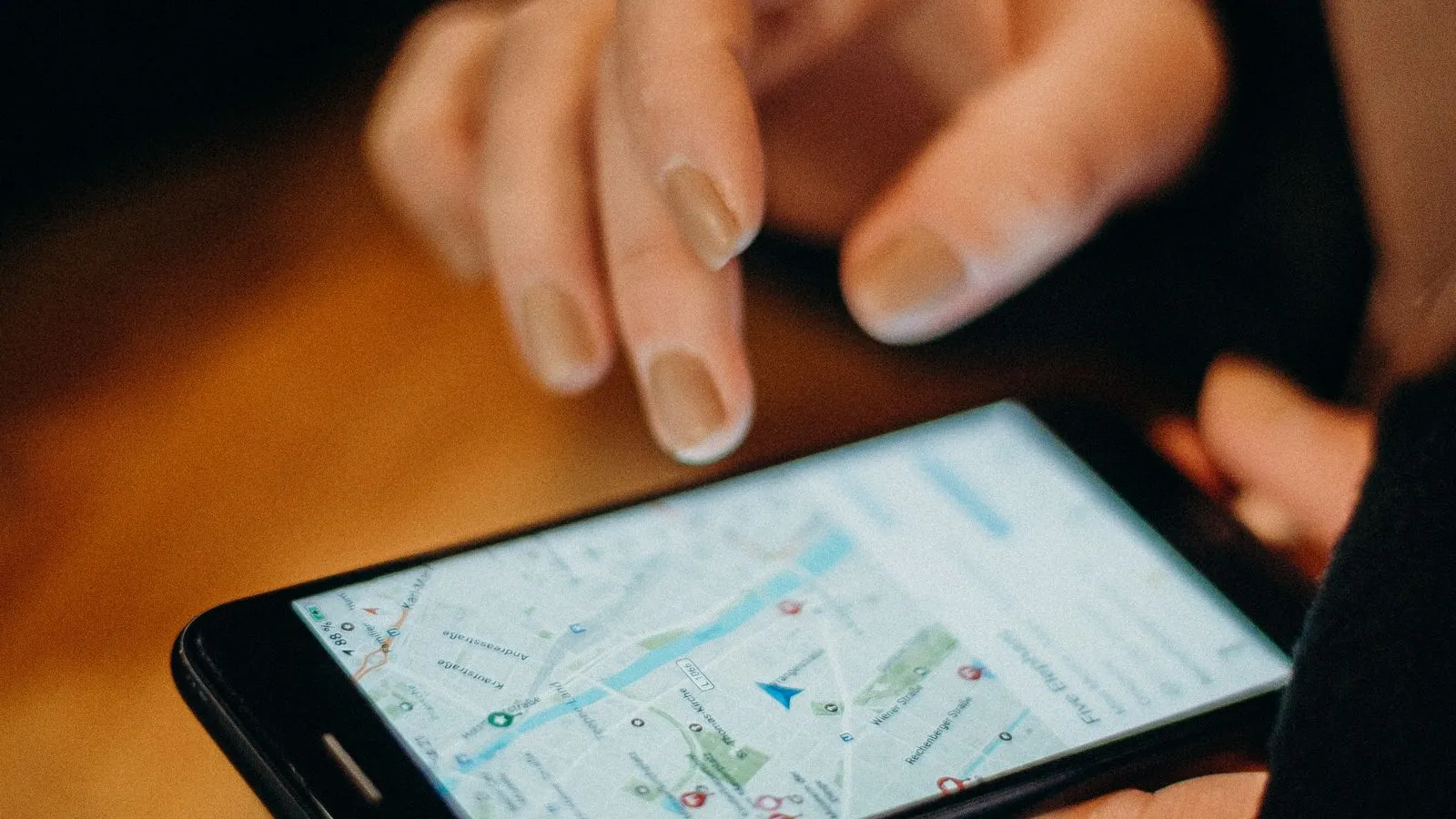
When someone searches "barbershop near me" or "dental clinic Cebu", the map and the business listings they see come from Google Business Profiles. A complete profile with a booking link turns that search into a booking without a single message.
Setting one up is free. This guide walks through each step as Google's own help pages describe it, with the choices that matter for a service business in the Philippines.
Check whether you're already on Google
Search your business name and city on Google Maps before you create anything. A client or a past staff member may have added your business already, and two profiles for one place split your reviews.
- Not listed: go to business.google.com/add, select Add your business to Google, and follow the on-screen steps. You need a Google account.
- Listed, but not managed by anyone: claim it from the same page by searching for your business and following the steps.
- Listed and verified by someone else: select Request access and fill in the form. Google emails the current owner, who has 3 days to respond.
Use an email the business keeps, not a staff member's personal account. If that person leaves, you don't want your profile leaving with them.
Enter your name and address the way clients know them
Google asks that your business name match the name on your signage, your website, and your receipts. Don't add keywords or taglines to it: putting "Best Facial Makati" after your name is the kind of extra Google's guidelines rule out.
- A shop clients visit: enter the full street address, with the building, floor, and unit if you're inside a mall or an office tower.
- A business that goes to clients, such as a home-service massage therapist or a mobile nail tech: Google asks service-area businesses to hide their address from customers.
- More than one branch: each location gets its own profile. Google allows one profile per location.
Verify the profile
Your profile appears on Search and Maps only after you verify it. Google picks the verification methods for you based on your business type, location, and other information, and you can't change which ones you're offered.
| Method | What you do |
|---|---|
| Phone or text | Enter the code Google calls or texts to you |
| Follow the steps in the email Google sends | |
| Video recording | Record one unedited video of at least 30 seconds on your phone, showing where you are, your sign, and that you manage the business |
| Live video call | Show your location and that you run the business, live on a call |
| Postcard | Enter the code from a postcard mailed to your address |
Google says reviews of a verification can take up to 5 business days. A postcard usually arrives within 14 days, and its code expires after 30 days. While you wait for a postcard, don't edit your name, address, or category.
Choose the fewest categories that describe you
Your primary category decides which searches you show up for, so pick the most specific one that fits. Google's own example: choose "Nail salon", not just "Salon". Think of it as "this business IS a", not "this business HAS a".
- Primary category: the one thing you are, such as a barbershop, a dental clinic, or a Pilates studio.
- Additional categories: only for real parts of your business. A hair salon with a separate nail station may add Nail salon. Don't add a category for every service.
- Changing later: go to Edit profile, then Business category. Google may ask you to verify again after a change, so get it right the first time.
Set your hours, including holidays
Wrong hours cost you twice: a client who arrives to a locked door, and a review about it. Set your regular hours under Edit profile, then Hours.
For the days you close or open late, use Special hours. They cover changes of up to 6 days in a row, which suits Holy Week, All Saints' Day, and the days around Christmas and New Year. If you close for 7 days or more, for a renovation for example, mark the business Temporarily closed instead.
Keep your booking page in step. In Onsuki, add a closure under Settings, Business, Closures, and clients can't book those days.
Add photos, a description, and your services
Photos are often the first thing a client looks at. Google accepts JPG or PNG files between 10 KB and 5 MB, recommends 720 by 720 pixels, and asks that they be in focus, well lit, and without heavy filters. New photos can take 24 to 48 hours to appear.
- Logo and cover photo, so your profile is recognizable.
- The front of your business, taken from the street, so first-time clients can find the entrance.
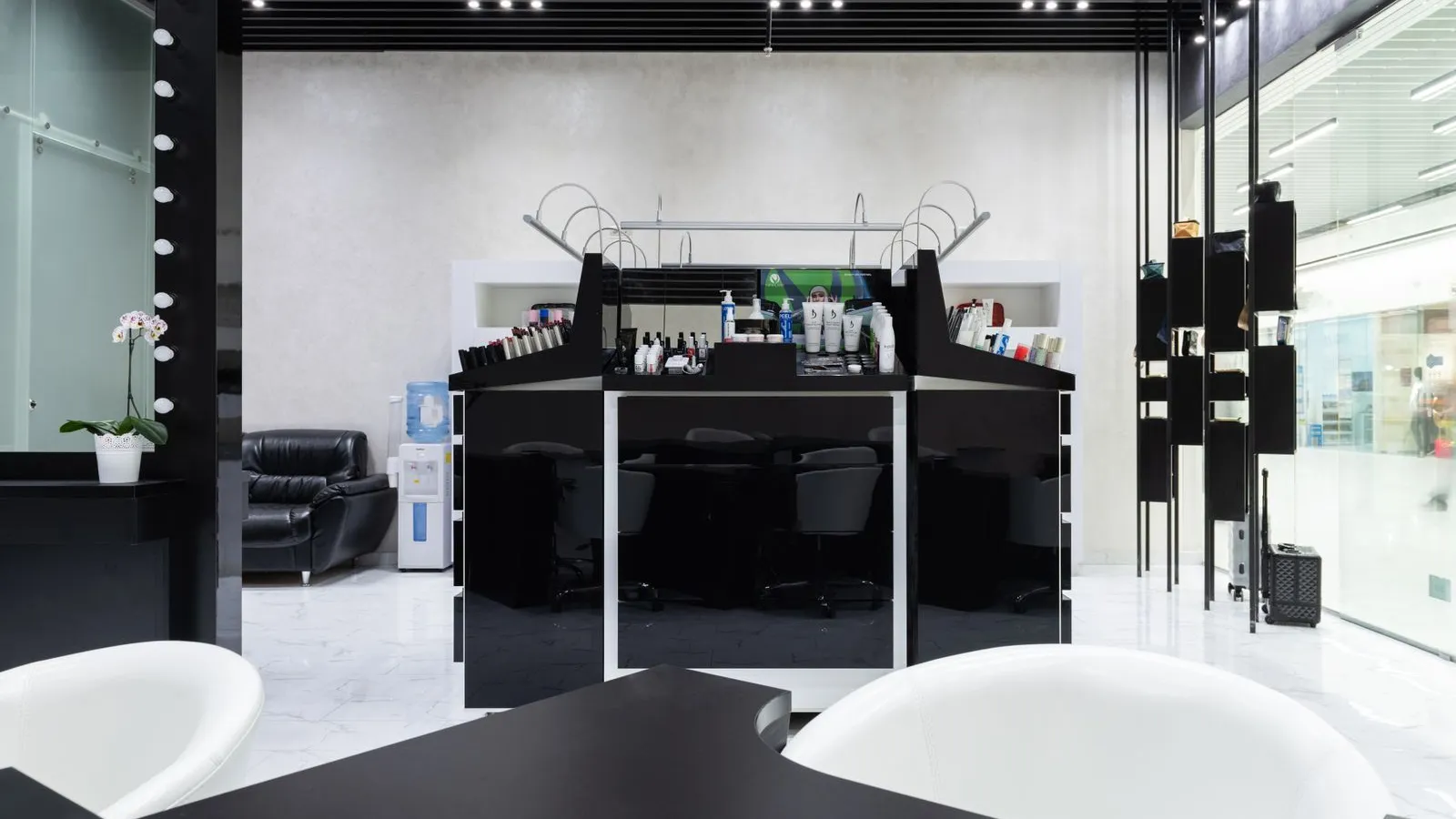
- Inside, in daylight: the chairs, treatment rooms, or courts clients will use.
- Your work, with the client's permission: a finished cut, a set of nails, a clean treatment room.
Write a description of no more than 750 characters, with no links. Say what you do, where, and for whom, in plain words: "A barbershop in Pasig for classic cuts, fades, and hot towel shaves, open daily until 9 PM." Then add your services under Edit services, with a price and a short description for each where you can.
Add your booking link
Without a booking link, a client who finds you has to call or message. With one, they can pick a time right away. Google lets you add up to 10 links for booking an appointment.
- Open your Business Profile and find Bookings. On Google Maps, start from Edit profile.
- Select Add link, or Add another link if you already have one.
- Paste the address of your booking page and select Save.
Use a link that opens straight to your services and open times, not your Facebook page or a chat. Then make a test booking from your own profile to check it works on a phone.
In Onsuki, copy your link from Settings, Business, Website and paste it as your booking link. Clients see your services, prices, and open times, and can pay by GCash, QR Ph, or bank transfer, or choose to pay in person if you turn that on. See Online booking.
Ask for reviews and answer every one
Google says more reviews and positive ratings can help your local ranking. It also says you can't pay for a better ranking, so reviews from real clients are the way to earn one.
- Get your review link: select Read reviews, then Get more reviews, and copy the link. To get a QR code, do it from a computer browser, since the QR can't be made on a phone.
- Share it where clients are: in your thank-you message after a visit, and printed at the counter beside your booking QR code.
- Don't offer anything for a review: Google's policy rules out discounts, free services, or payment in exchange, and says not to pressure clients to review while they're at your business.
- Reply to every review: select Read reviews, then Reply. Thank people by name, and answer a complaint calmly with what you'll do about it. Google checks replies before they appear, usually within 10 minutes.
A profile kept up this way does most of the work of being found. Pair it with a booking page clients can use in a minute, and searches turn into appointments. For more ways to fill your calendar, see How to get more clients for your salon.