A booking that is already paid for is a booking the client plans around. The decision is made, the money is in your account, and the time you set aside is covered before the client walks in.
In the Philippines, most of that money moves through GCash, bank apps, and QR Ph. This guide covers when to ask for payment, what each way of getting paid really costs, and how to check receipts so a screenshot never stands in for money.
Understand why paying first changes behavior
A client who has paid nothing loses nothing by skipping. A client who has paid has a reason to come, or at least to cancel in time and get their money back under your policy. That is the whole mechanism, so use it where an empty slot hurts most.
- Pay in full when they book fits classes, court rentals, and packages. The spot is sold the moment it is booked, and nobody collects at the door.
- A deposit when they book fits long appointments, like a color, a full set of lash extensions, or a two-hour massage. It commits the client without asking for the whole price weeks ahead.
- Pay in person fits regulars and quick services, like a men's cut, where an empty half hour is easy to fill with a walk-in.
Every payment step also asks something of the client. For a regular who has come every two weeks for a year, it buys you little. For a first-time client taking your Saturday morning slot, it buys a lot.
Start with the accounts you already have
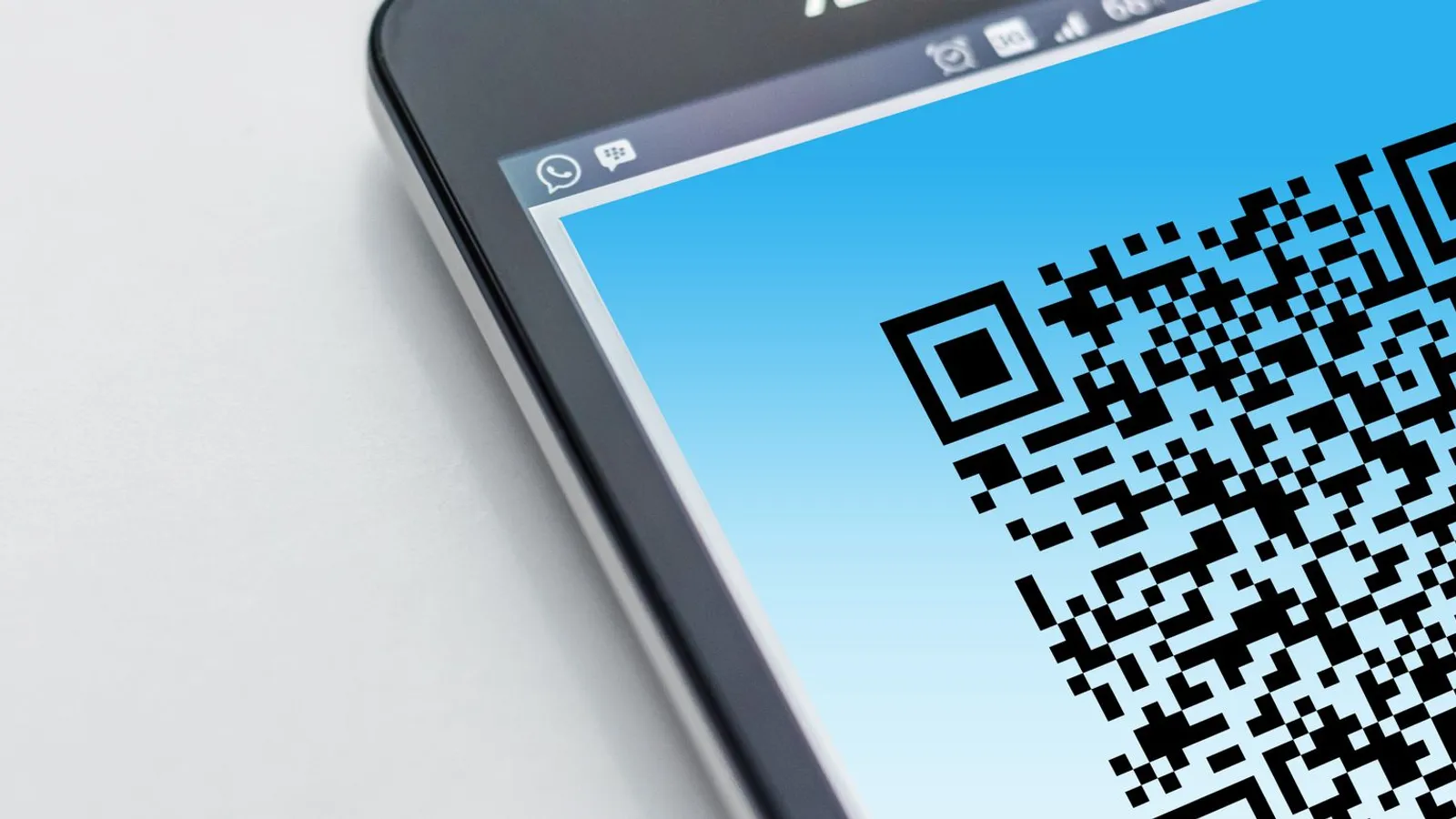
Your clients already have GCash or a bank app on their phone, and a QR Ph code can be paid from any bank or e-wallet that supports QR Ph. So the simplest setup is the one you may already run in chat: the client sends money to your GCash number or bank account, and you check that it arrived.
Moving that from chat to a booking page changes two things. The client sees the exact amount beside your account details, so fewer transfers come in short. And every payment waits in one list for you to check, not scattered across threads.
In Onsuki, add your GCash, QR Ph, or bank account as a payment method. Upload your QR once, and when the code allows it, Onsuki redraws it at each checkout with the amount filled in. The money goes straight to your account.
Compare what each way of getting paid costs
Your own accounts and a payment gateway both work. They differ in who pays for each payment and who does the checking.
| Compared | Your own GCash, QR Ph, or bank account | A gateway such as PayMongo |
|---|---|---|
| Fee per payment | No gateway fee | A percentage that depends on the method, shown below |
| Booking confirmed | When you approve the receipt | As soon as the client finishes paying |
| Your work | Checking each receipt against your app | Nothing to check for the payment itself |
| Refunds | You send the money back yourself | Card and e-wallet payments go back through PayMongo; QR Ph you send back yourself |
| Cards | On your own terminal, at the counter | Online, when the client books |
PayMongo's published rates, before VAT:
| Method | PayMongo fee per payment, before VAT |
|---|---|
| Online banking | 0.71% or ₱13.39 |
| QR Ph | 1.34% |
| ShopeePay | 1.70% |
| GrabPay | 1.96% |
| GCash | 2.23% |
| Card | 3.125% + ₱13.39, or 4.02% + ₱13.39 on a card issued abroad |
To size the gateway cost for your own business, take last month's online bookings and multiply by the rate for the method your clients use most, plus VAT on the fee. For example, if clients paid ₱200,000 online and nearly all of it by GCash, multiply ₱200,000 by the GCash rate above. Set that figure against the hours your team spends checking receipts.
You can also mix them: keep your own accounts for GCash and QR Ph, and use a gateway only for cards. In Onsuki, you request PayMongo from Settings, and you choose for each wallet whether it is collected through PayMongo or your own account.
Check every receipt against your app, never the screenshot
A screenshot shows that someone took a picture of a transfer. It does not show that the money reached you: a picture can be edited, reused, or taken before a transfer failed. The only proof is the transfer in your own GCash or bank app.
- Open your GCash or bank app and find a transfer for the same amount.
- Match the reference number on the screenshot to the one in your app. The amount alone is not enough, because two clients can send the same amount on the same day.
- Approve it when both match. Reject it with a reason when they don't, so the client knows what to fix.
Check at set times, such as when you open, at lunch, and before you close, so clients know when to expect a confirmation and nothing waits overnight. Give the job only to people who can see the account the money goes to.
Onsuki holds the booking while you check and lists each receipt under To verify with its amount, method, and reference. Approve it, and the booking is confirmed and any package it bought becomes usable. Reject it, and the client is emailed your reason, and a booking held only for that receipt is canceled so its time opens up. If a client sent more than they owed, Onsuki records what was owed and lists the difference under To refund for you to send back. Approving takes the Approve payments permission, so you decide who does it.
Collect the balance after a deposit
A deposit leaves part of the price owed. Decide where it is collected, usually at checkout after the service, and record how it was paid so your totals match at the end of the day.
In Onsuki, the balance after a deposit stays owed on the booking and shows under Unpaid until you check the client out. If a client wants to settle it in chat, copy their pay link from Unpaid and send it: the page shows your GCash, QR Ph, or bank details, and their receipt comes back to To verify. To set the deposit itself, see How to reduce no-shows.
Take cards when clients ask for them
Some clients prefer cards, and visitors from abroad may not have GCash at all. You have two options, and they can run side by side.
- At the counter: keep the terminal you rent from your bank, charge the card on it, and record the payment with the approval code from the slip, so your sales add up.
- Online: use PayMongo, so clients pay by card when they book and the booking is paid at once.
Match the day's money before you close
Approve every waiting receipt before you count, then compare each account's total with what arrived in its app. A missing transfer is easy to trace the same evening, while the client still has the receipt on their phone.
Onsuki's End of Day shows the day's money by payment method and checks your cash drawer. See How to close out the day and Reports.